Explore your 'My Work' dashboard
The My Work dashboard is designed to provide a single location where users can quickly understand, prioritise, and manage their assigned work.
Rather than navigating to multiple areas of Altus, users can use My Work to:
- Review overdue work.
- Identify tasks requiring immediate attention.
- Monitor upcoming commitments.
- Open and update assigned work items.
- Focus on the activities most relevant to their role.
For many users, My Work becomes the primary starting point for their day and provides a personalised view of their current workload.
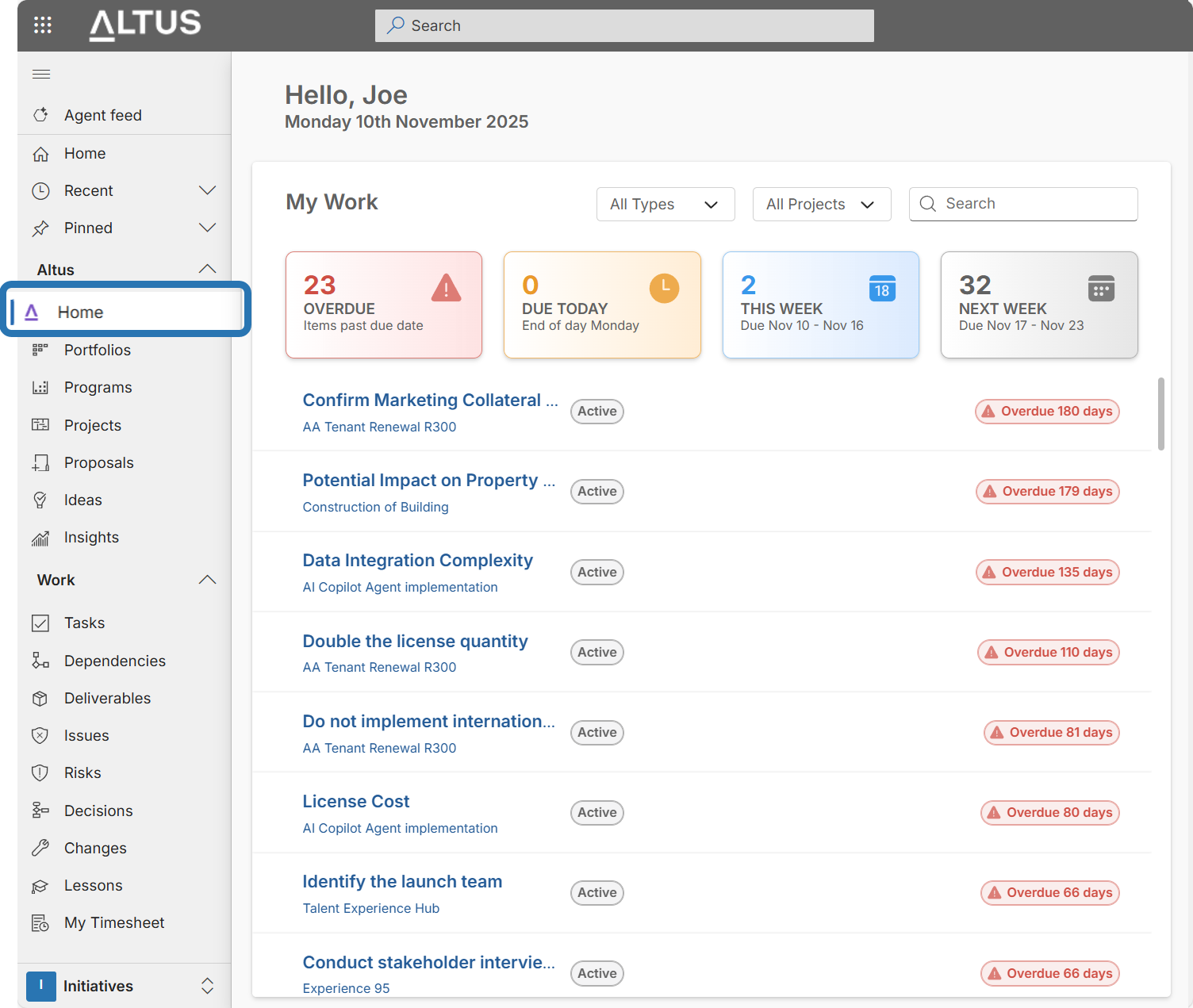
- Upon logging into Altus, users are greeted with a welcome message and the current date.
- The dashboard automatically displays the "My Work" section, tailored to each user displaying all items assigned to you from the project schedules and support item registers.
Prioritise Your Work
The summary cards provide a simple way to prioritise and organise daily activities.
A recommended approach is:
- Review Overdue items first.
- Review work due Today.
- Review work due This Week.
- Plan upcoming work from the Next Week category.
This helps ensure urgent work is addressed before future activities are considered.
Tip:
Regularly reviewing work by due date can help reduce missed deadlines and improve visibility of upcoming workload.
Personal Productivity Workspace
My Work acts as a personal productivity workspace by bringing together work items assigned to you across projects and operational processes.
Depending on your role and organisational configuration, this may include:
- Project Tasks
- Deliverables
- Issues
- Support Items
- Action Items
- Other assigned work records
This allows users to focus on assigned responsibilities without manually searching across multiple projects.
Use Search and Filters Effectively
As the volume of assigned work increases, filters become increasingly important.
Consider using:
Type Filter
Use when you want to focus on a specific category of work such as:
- Tasks
- Deliverables
- Issues
Project Filter
Use when working within a specific project or customer engagement.
Search
Use search when:
- Looking for a specific work item
- Reviewing work associated with a project
- Locating an assignment quickly
Combining filters and search can significantly reduce the time required to locate relevant work.
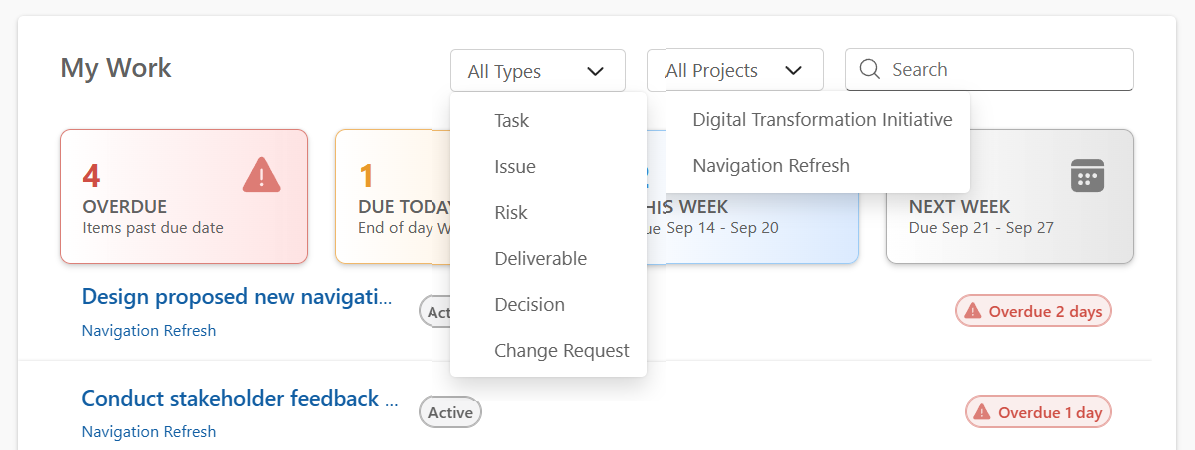
These tools help users focus on what’s most relevant to them at any given time.
Reviewing Work Item Details
Selecting a work item opens the associated record, allowing you to:
- Review details
- Check status
- Review due dates
- Update progress
- Complete assigned actions
Where permissions allow, updates made to the underlying item become immediately available to other users working within the project.
Understanding the Work Summary Cards
The My Work dashboard is designed to highlight urgency through both grouping and visual indicators.
Keep in mind:
- Overdue items require immediate attention.
- Due Today items should normally be completed during the current working day.
- Due This Week items represent current planning priorities.
- Next Week items support forward planning.
Not all work carries equal urgency, so users should also consider:
- Project priority
- Business impact
- Customer commitments
- Delivery dependencies
when deciding what to work on next.
Just below the filters, users will see coloured summary cards that group the work items by urgency:
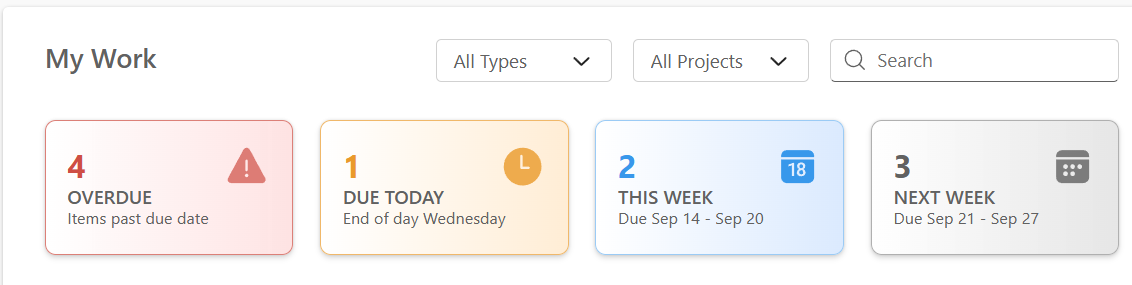
- 🔴 Overdue – Work items past their due date (e.g., "4 OVERDUE")
- 🟠 Due Today – Work items due by the end of the current day
- 🔵 Due This Week – Work items due within the current week
- ⚪ Next Week – Work items scheduled for the following week
Each card acts as a quick visual indicator of workload and urgency. Clicking on a card filters the task list below to show only tasks in that category.
Reviewing Work Details
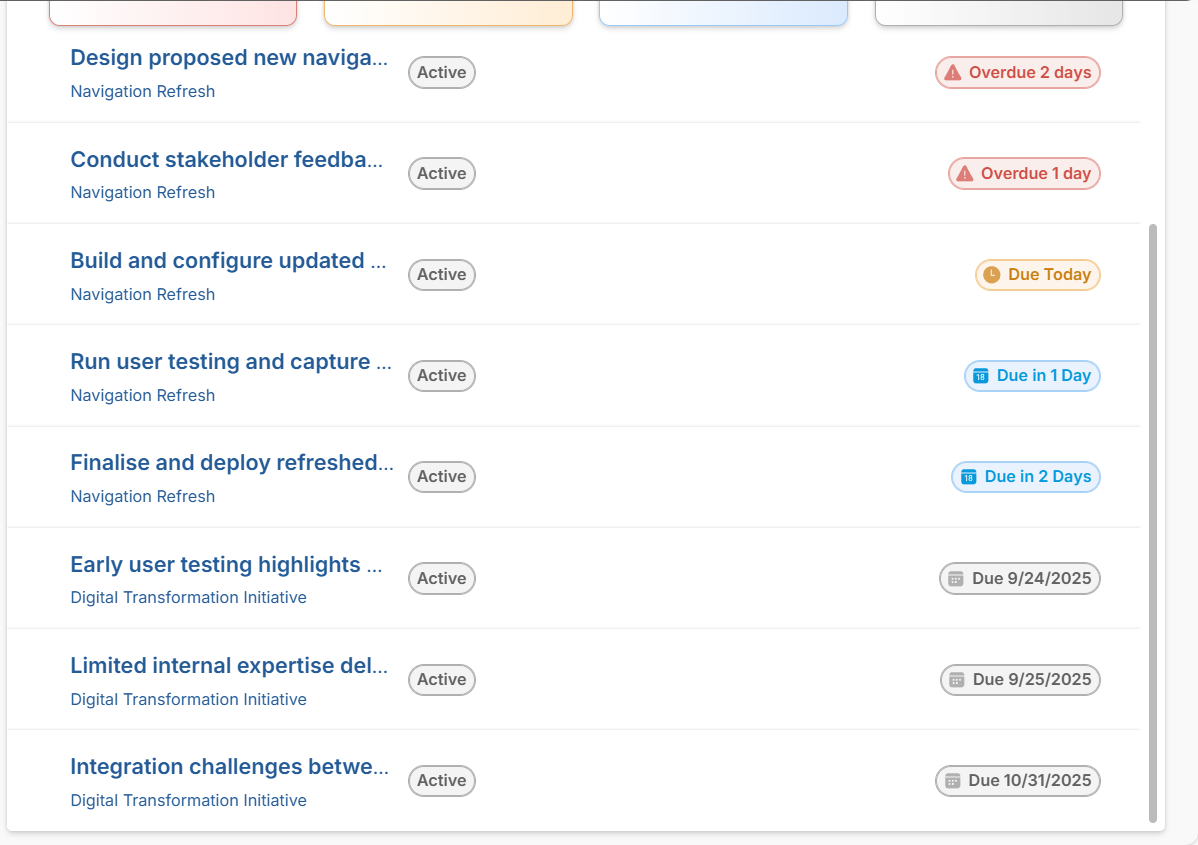
Each work item includes:
- Work Item Title and Project Name
- Status (e.g., Overdue 2 days, Active)
- Due Date or time remaining
Clicking on a work item opens its full details, allowing users to take action or update progress.
Best Practices for Using the Dashboard
- Start your day by reviewing the Overdue and Due Today sections.
- Use Pinned to keep critical tasks easily accessible.
- Regularly check Insights for performance trends and updates.
- Use filters to stay focused on specific projects or task types.
Configuration
If you are an administrator and needs to modify the configuration of the dashboard, refer to this article: https://hub.sensei.cloud/Docs/Altus/Configuration/HomePage/MyWork.html
Tip: You can choose between the My Work homepage and the classic landing page for ease of navigation id enabled by the admin in the organisation. You can find the toggle switch at the bottom right hand corner of the default homepage. Learn about this feature.
Key Considerations
- My Work displays items assigned to the currently logged-in user.
- Available work item types may differ between organisations.
- Results depend on user permissions and security settings.
- Filters help focus on specific projects, work types, or priorities.
- Changes made to work items update the source record.
- Work displayed in My Work reflects current project and operational data.
- Some organisations may allow users to switch between the My Work homepage and the classic landing page.
Tips
- Start each day by checking Overdue and Due Today items.
- Use Project filters when focusing on a specific project.
- Use Search when working across multiple projects.
- Keep critical work items pinned where available.
- Review upcoming commitments before weekly planning meetings.
- Regularly update work status so My Work accurately reflects current priorities.
- Use My Work as your primary navigation point for assigned activities.