
Track progress using timesheets
Timesheets are used to record actual work performed across project and non-project activities.
Complete your timesheet regularly, preferably daily, to support:
- Accurate time recording
- Reliable project progress information
- Resource planning and utilisation reporting
- Compliance with organisational timesheet policies
- Actual labour-cost reporting where timesheet data is imported into Project Financials
Depending on your organisation’s configuration, you may record time against individual Project Tasks or directly against Projects.
Timesheets contribute to actual resource work and reporting and may also be used in financial tracking if integrated with project Financials.
Important:
Timesheet processes, approval requirements, visible fields, project access, and available Non-Project Time categories may differ according to your organisation’s configuration.Always follow your organisation’s internal timesheet and time-recording policies where they differ from this article.
Where daily completion is required, enter and Save your hours each day, then select Submit for Approval when the full reporting period is complete. Submitting the timesheet makes it unavailable for normal editing unless it is recalled.
Where Timesheet Tasks Come From
The project work displayed in your timesheet originates from resource assignments in the project schedule.
Depending on the project setup, the schedule may be:
- Created and managed using the native Altus scheduling feature
- Managed in Microsoft Project and published to Altus
- Managed through another supported or configured execution tool
Where the native Altus schedule is used, assigned Altus Tasks can become available for time entry.
Where Microsoft Project or another external schedule is used, assigned Tasks must first be published or synchronised to Altus before they become available in your timesheet.
Important:
Microsoft Project is only one possible source of timesheet Tasks. Projects using the native Altus schedule can also supply assigned Tasks to timesheets.The project schedule remains the source of Task assignments, planned effort, dates, and Remaining Effort. The timesheet is used to record Actual hours.
If the displayed Task information is incorrect, missing, or no longer reflects the work required, contact the Project Manager or schedule owner.
Where This Is Performed
- Inititives → Work → Current Timesheet
The exact menu label may vary according to your organisation’s configuration.
Access Your Timesheet
You can access timesheets from the Work area:
- My Timesheet opens your timesheet detail screen and defaults to the current open period.
- Timesheets displays a list of your timesheets across multiple periods.
To open your current timesheet:
- Navigate to Work.
- Select My Timesheet or Current Timesheet, depending on the label available in your environment.
- Confirm that the correct timesheet period is displayed.
Tips:
After opening your timesheet, look for it in the Recent section of the left navigation and pin it for quicker access in future.If Altus is installed in Microsoft Teams, you may also be able to access your timesheet through the Altus app in Teams to reduce context switching.
Understand the Timesheet Screen
The timesheet screen contains a header, entry grid, totals, and available actions.
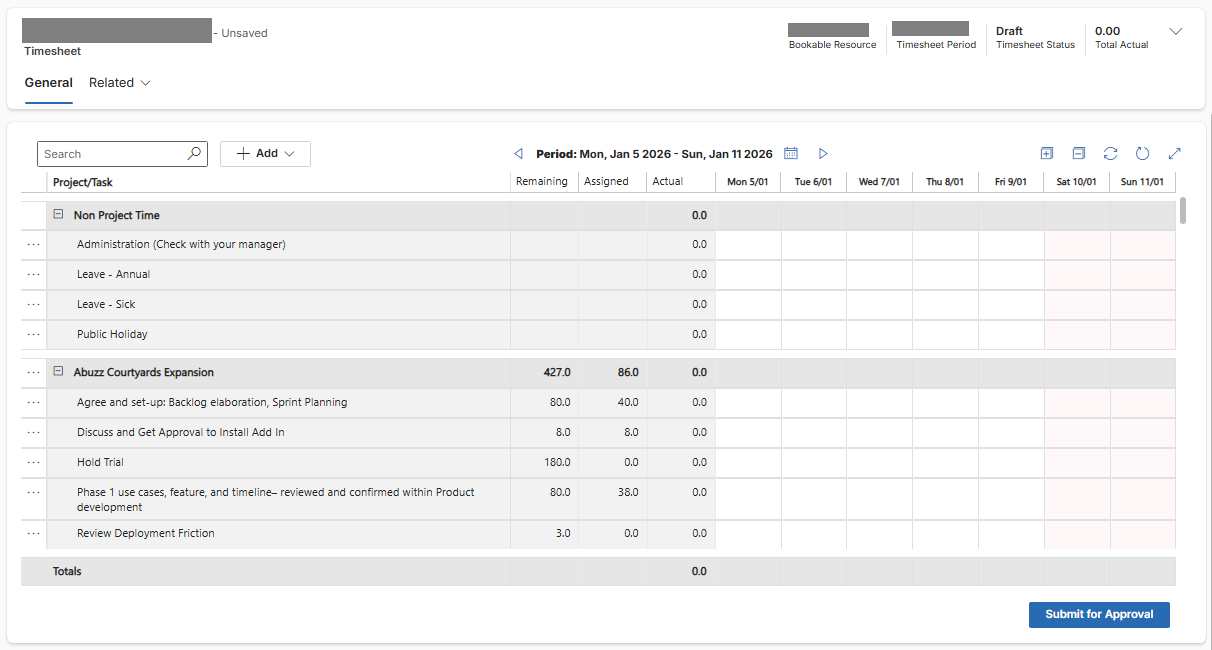
Header
The header provides a summary of the timesheet, including:
- Timesheet user
- Timesheet period
- Current status
- Total actual hours entered for the period
Timesheet Grid
Depending on your organisation’s configuration, time may be recorded against individual Project Tasks or directly against Projects.
In Project Tasks mode, the grid can include:
- Project/Task, showing Projects and Tasks in a hierarchy
- Remaining, showing remaining assigned hours across all periods
- Assigned, showing assigned hours for the current period
- Actual, showing completed hours for the current period
- Daily columns, such as Monday to Sunday, where actual hours are entered
In Projects Mode:
- Only Project names are displayed
- Time is recorded directly against Projects
- Task-level information is not displayed
- Remaining and Assigned values may not be available
Important:
Timesheet Mode is configured centrally. Timesheet Users cannot change between Project Tasks Mode and Projects Mode from their individual timesheet.
Footer and Actions
At the bottom of the timesheet, you can review calculated totals and access actions such as:
- Submit for Approval
- Recall Timesheet, when available
- Other actions provided according to status, access, and configuration
Understand Project Tasks and Projects Modes
Your organisation determines how users record time.
Project Tasks Mode
In Project Tasks mode:
- Projects and assigned Tasks appear in a hierarchy.
- Hours are recorded against individual Tasks.
- Remaining and Assigned values are available.
- Task-level details and assignments can be reviewed.
- Approved time may be imported into native Altus Tasks and Project Financials where those processes are configured.
Projects Mode
In Projects mode:
- Only Project names are displayed.
- Task information is not shown.
- Remaining and Assigned values are not displayed.
- Hours are entered directly against each Project.
- Header information, daily entry columns, totals, and submission actions work in the same general way as Project Tasks mode.
Important:
The Timesheet Mode is configured centrally by an administrator. Individual users do not switch between Project Tasks and Projects modes from their timesheet.
Confirm the Timesheet Details
Before entering time, confirm:
- The correct Timesheet User
- The correct Timesheet Period
- The current Status
- That you are working on your own timesheet and not one opened on behalf of another resource
Timesheets commonly move through the following statuses:
- Draft, saved but not submitted
- Submitted, sent for approval
- Approved, accepted by the Timesheet Manager
- Rejected, returned for correction
Tip:
Double-check the user and period whenever you open a timesheet from a list or when an authorised manager is working on behalf of another resource.
Select the Correct Timesheet Period
The current open week or reporting period is shown in the timesheet header by default.
To navigate between periods:
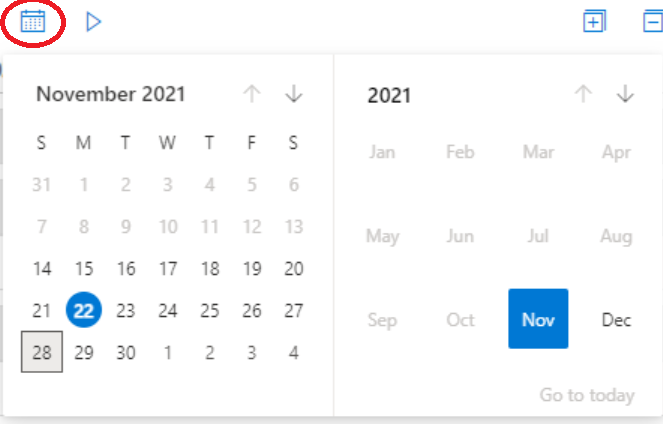
- Use the previous and next arrow buttons to move between periods.
- Alternatively, select the calendar button.
- Choose the required date or timesheet period.
Important:
A closed timesheet period cannot be modified, deleted, recalled, submitted, or moved to another status. Contact your Timesheet Manager or administrator if a correction is required for a closed period.
Use Full-Screen Mode
Full-screen mode can help reduce visual noise when entering time across multiple rows.
- Locate the full-screen option in the upper-right corner of the timesheet.
- Select it to expand the timesheet.
- Exit full-screen mode when you need to access an action that is not visible in the expanded view.
Tip:
If Save or another required action is not visible in full-screen mode, return to the standard screen before continuing.
Complete Your Timesheet
- Navigate to Work → Current Timesheet.
- Confirm the correct timesheet user and period in the header.
- Review the Project, Task, and Non-Project Time rows displayed.
- Enter the actual hours worked appropriately into each daily cell for Project Tasks or Projects and Non-Project activities
- Review the total hours entered for each row and the full period.
- Optionally add comments using the comment icon for each entry where additional context is required.
- Select Save regularly while entering time.
- Submit the timesheet when the period is complete.
Tip:
Record time daily rather than reconstructing the entire period at the end. This helps improve accuracy and reduces the risk of missing project or non-project work.
Always add comments when clarification is needed, such as unusual hours, overtime, work performed outside the planned period, or specific activities that may not be obvious from the Task name.
Understand Remaining, Assigned, and Actual Hours
Where Project Tasks Mode is used, the timesheet provides helpful context for each assignment.
Remaining
Remaining represents your remaining assigned hours across all relevant periods.
This gives you a broader view of how much of your Task assignment is still outstanding.
Assigned
Assigned represents the hours assigned to you for the current Timesheet Period.
It does not represent your total assignment across the full duration of the Task.
Actual
Actual represents the hours you have recorded as completed for the current Timesheet Period.
The daily cells show when those Actual hours were performed.
Important:
You can record Actual hours from the timesheet, but you cannot directly amend assigned hours, Remaining Effort, Task dates, or the schedule forecast.If additional time or a revised completion date is required, contact the Project Manager or schedule owner.
Review Project and Task Context Information
In Project Tasks mode, additional information is available by hovering over values in the timesheet.
Project Details
Hover over a Project name to review information such as:
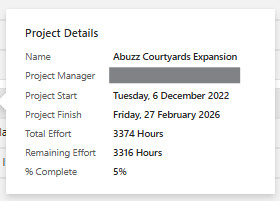
- Project Name
- Project Manager
- Start and Finish Dates
- Total Effort
- Remaining Effort
- Percentage Complete
Task Details
Hover over a Task name to review:
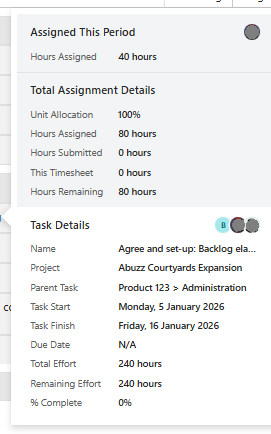
- Assigned hours for the current timesheet period
- Resource allocation percentage
- Total hours assigned
- Hours already submitted
- Hours entered in the current timesheet
- Remaining assigned hours
- Task Start, Finish, and Due Dates
- Total and Remaining Effort
- Percentage Complete
- Parent Task and Project information
Daily Assignment
Hover over the Assigned value for a Task to review:
- Assigned hours for each day
- Total assigned hours for the period
Tip:
Use the hover information to compare the time being entered with the Task’s assignment and remaining effort before submitting the timesheet.Review the hover information before entering time. It helps you understand both the overall Task and your individual contribution.
Enter Project Time
- Locate the correct Project or Task.
- Enter the hours worked in the appropriate daily cells.
- Review the Actual total for the row.
- Repeat for each Project or Task worked on during the period.
- Select Save.
Only record time against the Project or Task where the work was performed.
Important:
Do not record time against an unrelated Task because the correct Task is missing. Refresh the timesheet or contact the Project Manager or schedule owner instead.
Understand Unplanned Time Indicators
An Actual value may appear in red when time is entered against a Task on a day or within a period where no effort was assigned.
This does not necessarily mean the entry is invalid. The indicator draws attention to a difference between the recorded Actual time and the current schedule assignment.
Tip:
If the work was legitimately completed outside the planned period, add a concise comment and follow your organisation’s process for notifying the Project Manager or schedule owner.
Record Hours Beyond the Remaining Assignment
The timesheet may accept Actual hours that exceed the hours currently assigned or remaining.
Before submitting:
- Review the Remaining and Assigned information.
- Confirm that the time is recorded against the correct Task.
- Determine whether the schedule forecast may need to be reviewed.
- Follow your organisation’s process for notifying the Project Manager or schedule owner.
Important:
The timesheet does not replace the discussion required when Actual effort differs materially from the schedule forecast.Timesheet Users cannot increase Remaining Effort or extend the Task from the timesheet. Those changes must be assessed and made in the project schedule.
Add Non-Project Time
Non-Project Time is used to record activities that are not charged to a Project Task or Project.
Examples may include:
- Leave
- Training
- Administration
- Internal meetings
- Other organisation-wide categories
To add Non-Project Time:
- Select + Add.
- Select Non-Project Time.
- Choose the appropriate category.
- Enter the hours in the relevant daily cells.
- Save the timesheet.
Important:
Non-Project Time categories are configured centrally and are generally available organisation-wide.Select the category that best reflects the activity and your organisation’s time-recording rules. Incorrect classification may affect utilisation, capacity, or Non-Project Time reporting.
Add New or Missing Project Work
Project-related work is typically preloaded based on assigned Tasks.
If additional work is required:
- Speak with your Project Manager to ensure the Task is added to the project schedule and assigned correctly.
Tip:
Once the Project Manager or schedule owner has added or assigned the Task, select Refresh or Load Default Tasks to bring eligible Tasks into your timesheet.
If the Task still does not appear, confirm that:
- You have been assigned to the Task
- The Task is active
- The Project is active
- The assignment has been saved or published
- You have access to the Project and Task
Add a Future or Missing Project Task
If you have worked on an eligible Task that is planned for a future period, it may not appear automatically in the current timesheet.
To add it:
- Select + Add.
- Select Project Tasks.
- Search for the required Task.
- Select the Task.
- Select Add Task.
- Enter the hours in the relevant daily cells.
Only Tasks available to you under the configured assignment and access rules are displayed.
Tip:
Use this option for exceptional or one-off work against an existing assigned Task.If you will continue working on the Task across several periods, ask the Project Manager or schedule owner to update the schedule assignment so the Task appears automatically.
Understand Completed Tasks
A Task does not normally disappear from future timesheets simply because it has been locked.
The project schedule should reflect that:
- The Task is complete
- Remaining Effort is zero
- The updated native Altus schedule has been saved, or the external schedule has been published or synchronised
If a completed Task continues to appear, contact the Project Manager or schedule owner to review the Task status and Remaining Effort.
Important:
Timesheet Users cannot mark the schedule Task complete or set Remaining Effort to zero from the timesheet.If your work is complete but Remaining hours are still displayed, notify the Project Manager or schedule owner through your organisation’s agreed communication channel
Add Comments to the Timesheet Entries
Comments can be added to individual timesheet cells to provide context for the time entered.
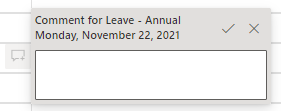
Use comments to explain:
- Unusual or additional hours
- Work that may not be immediately clear from the Task name
- Overtime or changed working patterns
- Corrections or resubmitted entries
- Information required by the Timesheet Manager
To add a comment:
- Hover over the relevant time-entry cell.
- Select the comment icon.
- Enter the comment.
- Select the tick to save it.
- Select the cross to cancel without saving.
Comments can be changed until the timesheet is submitted.
Tip:
Keep comments concise and factual. Provide enough information for the Timesheet Manager to validate the entry without including sensitive or unnecessary personal information.
Comments are not a live chat and should not be relied upon as the only way to communicate a required schedule change.For an externally managed schedule such as Microsoft Project, timesheet comments do not automatically update the source schedule.
Use your organisation’s normal communication channel when Remaining Effort, Task dates, or completion status must be reviewed.
Save Your Progress
Select Save while completing your timesheet to retain the current entries without submitting them for approval.
Saving:
- Records your progress
- Keeps the timesheet in Draft status
- Allows you to continue updating it
- Does not send the timesheet to the Timesheet Manager
Important:
Saving a timesheet is not the same as submitting it for approval.Enter and save time regularly, typically daily or according to your organisation’s policy. Saving regularly reduces the risk of losing your work.
The Timesheet Manager does not receive the timesheet for approval until you select Submit for Approval.
Submit Your Timesheet for Approval
Once the Timesheet Period is complete:
- Confirm the correct Timesheet User and Timesheet Period.
- Review all Project and Non-Project Time entries.
- Review daily and period totals.
- Confirm that comments have been added where required.
- Select Submit for Approval.
Submitting the timesheet:
- Changes its status from Draft to Submitted
- Sends it to the assigned Timesheet Manager
- Triggers the approval process
- Prevents normal editing unless the timesheet is recalled
Important:
Even if your organisation uses auto-approval, you must still select Submit for Approval to finalise your timesheet.
Understand Who Approves the Timesheet
By default, the Timesheet Manager assigned to the resource reviews and approves the complete timesheet.
This approval design does not normally include a separate Project Manager approval for the Project-related portion of the timesheet.
Important:
The Project Manager does not approve the timesheet by default unless that person is also assigned as the resource’s Timesheet Manager.Where approved hours are later imported into the project schedule, the Project Manager or schedule owner may have a separate opportunity to review the Actuals before applying them.
Understand Timesheet Statuses
Timesheets can have the following statuses:
Draft
The timesheet has been created or saved but has not yet been submitted.
Submitted
The timesheet has been submitted and is awaiting review.
Approved
The Timesheet Manager or another authorised approver has approved the timesheet.
Approval information is displayed at the top of the timesheet.
Rejected
The timesheet has been returned for correction.
The timesheet displays:
- When the rejection occurred
- The rejection comment
- The reason or correction requested by the approver
Tip:
If a timesheet is rejected, review the rejection comment, correct the affected entries, and submit the timesheet again.
After Submission
Once submitted:
- Your Timesheet Manager reviews the timesheet.
- The Timesheet Manager approves or rejects it.
- If rejected, the timesheet is returned for correction and resubmission.
- Approved entries become part of your Actual recorded work.
- Approved Actuals may become available for separate schedule and financial import processes.
Important:
Approved timesheets contribute to:
- Resource reporting
- Actual Effort tracking
- Project progress, where Actuals are reviewed and imported into the schedule
- Financial tracking, where Actuals are reviewed and imported into Project Financials
Approval alone does not necessarily update the project schedule or Project Financials automatically.
Recall a Submitted Timesheet
A submitted timesheet cannot be updated through the normal editing process unless it is recalled.
To correct a submitted timesheet:
- Open the submitted timesheet.
- Select Recall Timesheet.
- Update the required entries.
- Select Save.
- Select Submit for Approval again.
Important:
The recalled timesheet must be resubmitted before it can be approved.Recall may not be available when the Timesheet Period has been closed.
Recalling a previously approved timesheet may affect downstream Task Actuals or Financial Actuals. Recalling an approved timesheet does not necessarily reverse Actuals already imported into a native Altus schedule, Microsoft Project Plan, Project Financials, payroll, or another connected system.
Follow your organisation’s correction process where approved data has already been used downstream.
Work with Locked Tasks
A Project Manager may lock a Task so that users can no longer record new timesheet hours against it.

When a Task is locked:
- It cannot normally be added to a new timesheet.
- A lock indicator may appear beside an existing Task row.
- The Task may become read-only.
- New or existing entries may need to be cleared before the timesheet can be submitted.

If Altus displays a warning that time has been entered against a locked Task:
- Review the affected row.
- Select Clear Locked Rows.
- Confirm that the values have been removed.
- Save or submit the timesheet.

Important:
If the Task must remain available for time entry, contact the Project Manager to review or remove the Task lock.
Locking a Task is not the same as completing it. A locked Task may still retain Remaining Effort in the schedule.
Recalled Timesheets with Locked Tasks
If a previously approved timesheet is recalled after one of its Tasks has been locked:
- The locked Task row appears as read-only.
- Other Task entries can still be updated.
- The timesheet can be resubmitted with the read-only locked Task entry present.
Understand Timesheet Period Locks
A Timesheet Period can be closed centrally by an administrator.
Closing the period applies to all applicable timesheets in that period and not only to one user.
When the period is closed, users cannot normally:
- Add or change entries
- Submit a timesheet
- Recall a timesheet
- Change the Timesheet Status
Important:
A Task lock and a Timesheet Period lock are separate controls:
- A Task lock prevents time entry against a specific Task.
- A Timesheet Period lock prevents changes across the complete reporting period.
There is no standard Project-level timesheet lock in this process.
Understand Removed Task Assignments
If time was recorded against a Task before the resource assignment was removed:
- The recorded time remains in the timesheet.
- The existing timesheet entry can still be edited if the period and timesheet are not locked.
- The Task cannot be newly added if it is no longer available to the resource.
Approved recorded hours can still be applied to the Task or Financials because the downstream process uses the Task information associated with the timesheet entry rather than relying only on the current resource assignment.
View Your Timesheet History
To review timesheets across multiple periods:
- Navigate to Work.
- Select Timesheets, or select My Timesheets from the relevant command bar.
- Change the view or select the required timesheet.
- Open the Timesheet record to review its details and status.
This list can help you identify:
- Draft timesheets
- Submitted timesheets awaiting approval
- Approved timesheets
- Rejected timesheets requiring correction
Tip:
If you are using Altus in Microsoft Teams, you may also be able to access My Timesheets through the Altus app to reduce context switching.
Export Your Timesheet List
You can export the timesheets displayed in My Timesheets for personal reporting or review.
- Navigate to Work → Timesheets or My Timesheets.
- Select the appropriate list view.
- Apply filters if required.
- From the command bar, select Export to Excel.
- If the option is not immediately visible, select the ellipsis (…) and then select Export to Excel.
Tip:
The export reflects the records and columns available in the selected list view. Review the view before exporting to ensure it contains the periods and information you need.
Understand How Approved Timesheets Are Used
Approved timesheets become part of the organisation’s actual work record.
Depending on the Project Schedule Type and configured processes, approved time may contribute to:
- Actual resource work
- Task Effort Completed
- Project Percentage Complete
- Resource utilisation reporting
- Actual labour costs in Project Financials
- Variance between committed and submitted hours
- Other connected business or reporting systems
Important:
Approved timesheet data may require a separate review and import process before it updates the Project schedule or Project Financials. Approval alone does not necessarily apply the information automatically.
Native Altus Schedule
Where the project uses the native Altus scheduling feature, approved Task-level timesheet hours may be reviewed and selectively applied to the Altus schedule by an authorised user.
Microsoft Project Schedule
Where the schedule is managed in Microsoft Project, the schedule owner may review and import approved Actuals into the Microsoft Project Plan and then publish the updated schedule back to Altus.
Other External Schedules
Where another external execution tool is used, follow the configured integration or schedule update process.
Important:
Approved timesheet Actuals do not necessarily update the schedule or Project Financials automatically. A separate review and import process may be required.
Review Timesheet Reporting
Where available, Resource Assignment Insights may provide reports for:
Timesheet Compliance
Shows users and timesheets by period, including status and recorded hours.
Non-Project Time
Shows time entered against Non-Project Time categories.
The non-project reporting depends on the Work Type field being correctly configured for Non-Working Time items.
Actuals Variance
Shows the difference between the hours committed to a resource and the hours submitted through timesheets.
Report visibility depends on your security permissions, Power BI access, and the reporting content deployed in your environment.
Key Considerations
- Complete timesheets regularly, preferably daily or according to your organisation’s policy.
- Confirm the correct user, period, and status before entering time.
- Tasks may originate from the native Altus schedule or an externally managed schedule.
- The schedule is the source of Task assignments, planned effort, dates, and Remaining Effort.
- Timesheet Users record Actual hours but cannot amend Remaining Effort.
- Review Project and Task hover information before recording time.
- Red Actual values may indicate time recorded outside the planned assignment.
- Discuss material differences between planned and Actual hours with the schedule owner.
- Use Refresh when newly assigned Tasks do not appear.
- Use + Add → Project Tasks for eligible missing or future Tasks.
- Use comments to provide context, but not as the only way to request a schedule change.
- Save retains Draft entries but does not submit the timesheet.
- Select Submit for Approval even where auto-approval is configured.
- Submitted timesheets cannot be updated unless recalled.
- Task locks and Timesheet Period locks have different effects.
- Approved Actuals may require separate schedule and Financials import processes.
- The Project Manager does not approve the timesheet by default unless assigned as the Timesheet Manager.
Tips
- Enter time daily to avoid inaccuracies.
- Pin Current Timesheet for quicker access.
- Use full-screen mode when entering time across several rows.
- Review hover information before recording time.
- Check Remaining hours before entering significant additional effort.
- Add comments where clarification may prevent a rejection.
- Review all required Project and Non-Project Time rows before submission.
- Save regularly while completing the period.
- Submit only when the timesheet is complete under your organisation’s process.
- Use My Timesheets to review previous periods and statuses.
- Contact the Project Manager or schedule owner where Task forecasts require adjustment.
- Follow internal guidance when correcting approved time already used in downstream systems.
Timesheets FAQ
Users
What tasks can I see in my timesheet?
You will only see organisation wide, Open, Non Project Tasks and tasks that have been assigned to you in a project Task list in your timesheet.
In project Mode:
- The project is Active
- The user has access to the project
- The user is a member of the dynamics team that owns the project OR the user has been added to the project's resource plan and has therefore has been added to the project group
In Task Mode:
- The task is Active
- The project is Active
- The user has access to the project and task
Note
The exact conditions of project tasks that are visible to your organization is configurable.
I cannot see a task in my timesheet that I’ve been assigned to?
Use the refresh button or Add button in your timesheet to add any tasks that aren’t visible to your timesheet.


I do not have a timesheet manager,can I still submit a timesheet?
Even without a timesheet manager field set you can still complete a timesheet if needed. Any Timesheet Manager or Resource Manager can approve the timesheet.
Timesheet/Resource Managers
I am a Resource Manager,not a Timesheet Manager,why can I see and approve timesheets?
The Resource Manager security group role allows Resource Managers to see and approve timesheets by default. This is a configuration setting that can be modified by System Administrators if needed.
My organisation allows users to approve their own timesheets.How do I set this up within the system?
Set up the Resource with their own name in the Timesheet Manager field and the user will be able to automatically complete their own timesheet.
My organisation manages Agile projects outside of Altus,is there an easy way to allow users to timesheet without using a task schedule?
Yes, if you select Projects from the Timesheet Mode setting your organisation can timesheet from Resource Allocations rather than a task schedule.
Can I create a Non Project Time task and only send it to a specific user or group of users?
No, Non Project Time is available organisation wide.
Another Timesheet Manager is going on leave,do I need to delegate their work to another Manager to access their timesheets for approval?
No, any Timesheet/Resource Manager or System Administrator can approve timesheets. To see this manager’s timesheet approvals, change the filter on the Timesheet Approvals page so that their timesheet approvals show in your view. This feature is configurable through the timesheet configuration settings.
A staff member who needed to submit a timesheet did not,can another user submit their timesheets for approval?
Yes, any Timesheet/Resource Manager or System Administrator can create and submit a timesheet on behalf of a user. This feature is configurable through the timesheet configuration settings.
My Timesheet system sends Actual data into my LOB Finance system,how do I make sure users don’t change their timesheets for periods that are closed?
You can close timesheet periods in the system, when you do this any timesheets in these closed periods cannot be modified or deleted. By changing the Timesheet Period Status field to Closed you will lock this timesheet period.

Do Actuals from timesheets update Actuals in my Tasks or Financials tabs?
Yes, details can be found in these links.
What happens if a resource records timesheet hours against a task and is then removed from that task?
If a resource records time against a task, those hours remain recorded in the timesheet even if the resource is later removed from the task.
How are those hours handled in the Timesheet to Task or Financials syncs?
Altus imports timesheet data based on task information, not the resource assignment.
As a result, the approved timesheet hours will still be applied to the task in Altus Tasks and recorded against the resource in the Financials app.
Can the resource modify the hours in their timesheet if they have been removed from the task?
Yes. Resources can still edit time on a task that already appears in their timesheet, provided the timesheet is not locked. However, they cannot add the task to their timesheet if it is not already displayed.