
Gathering Altus Insights with Power BI
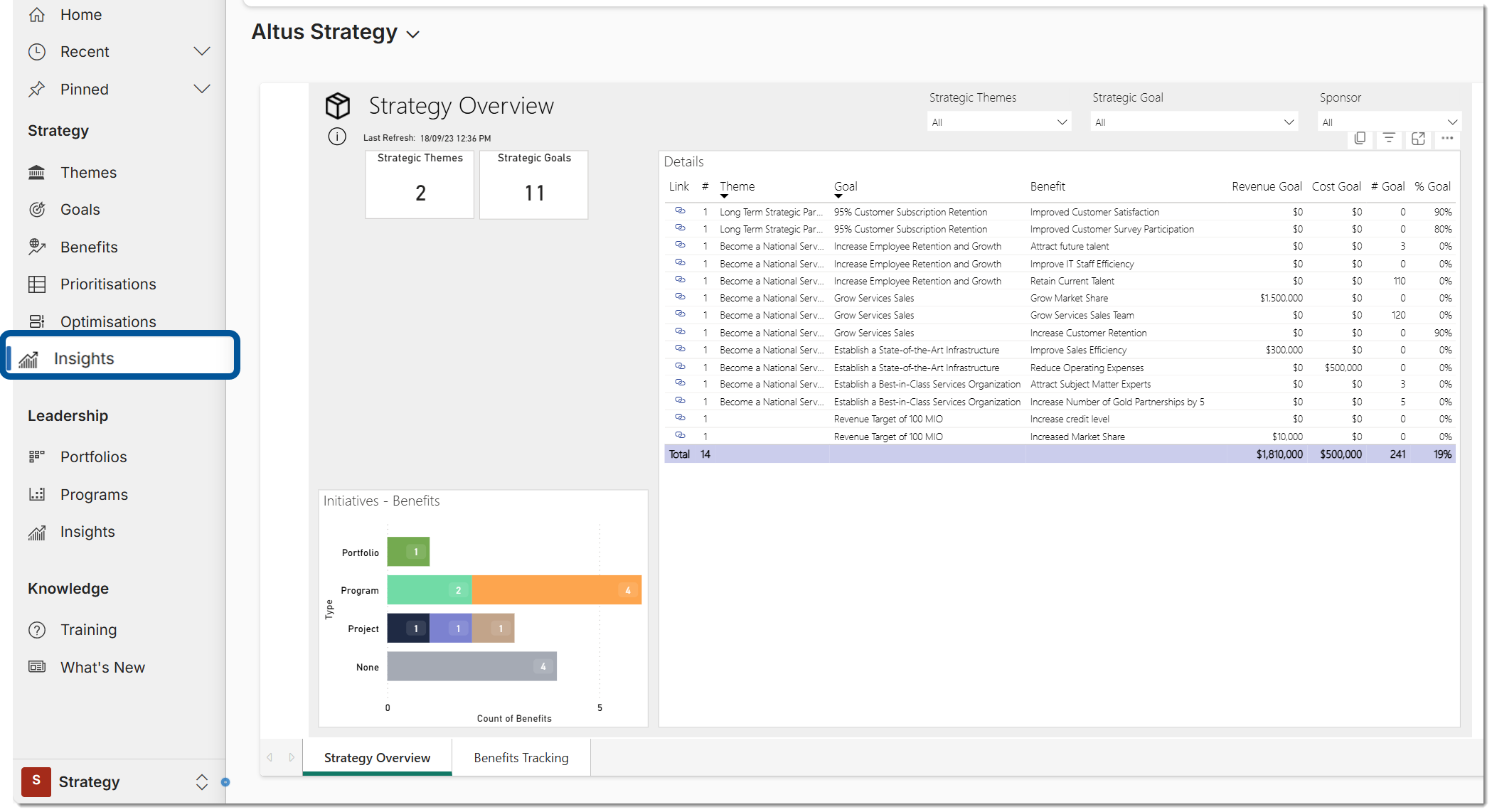
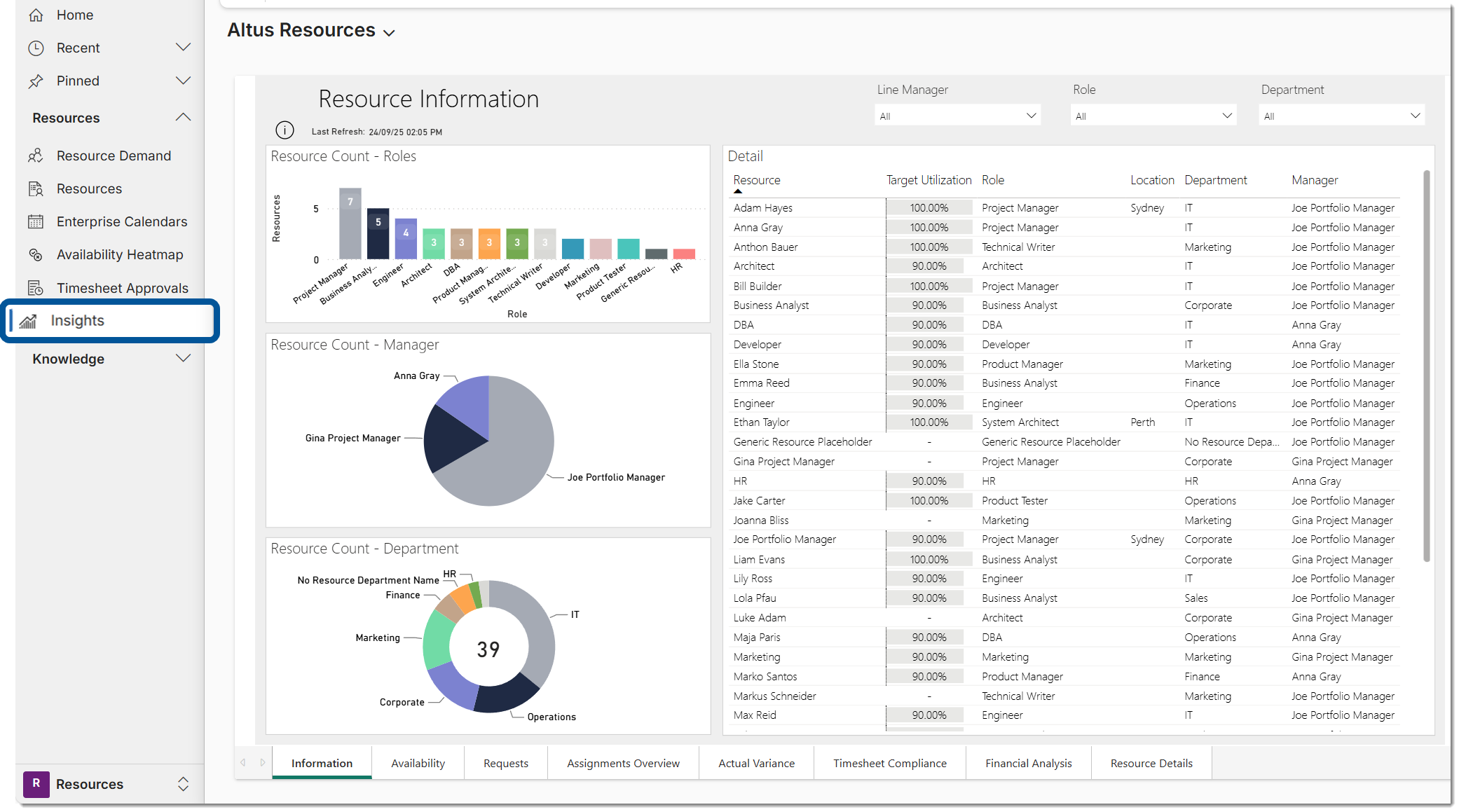
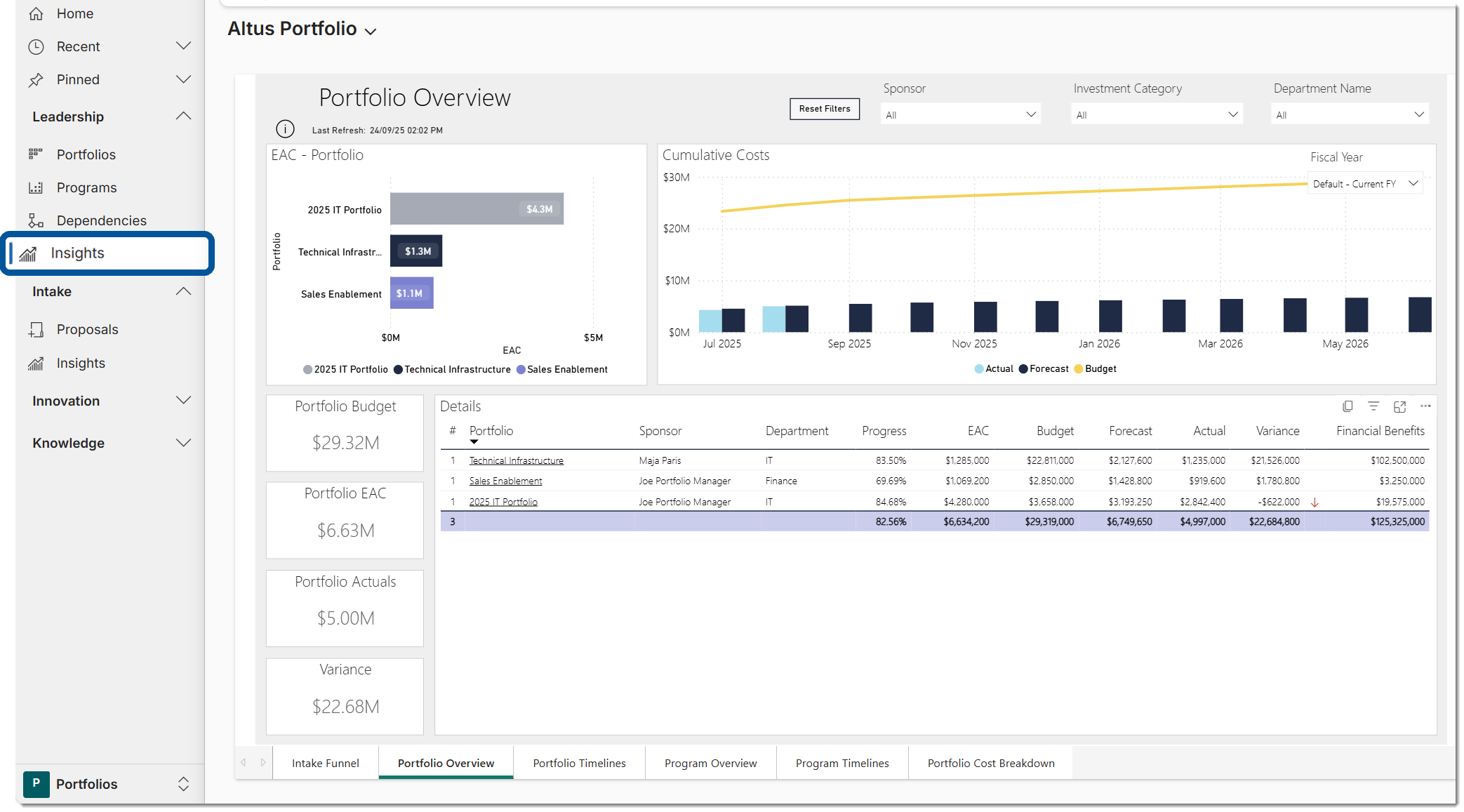
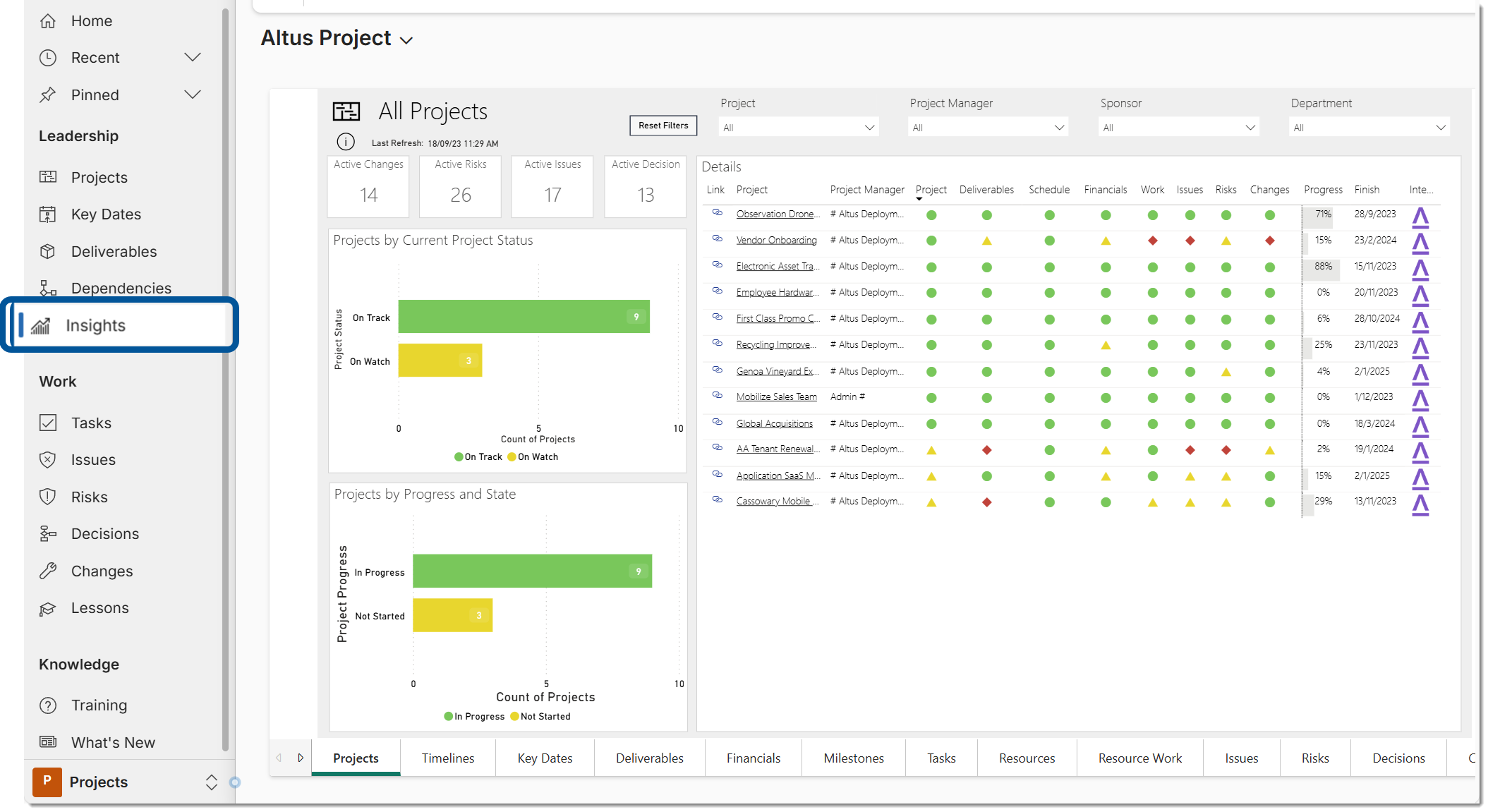
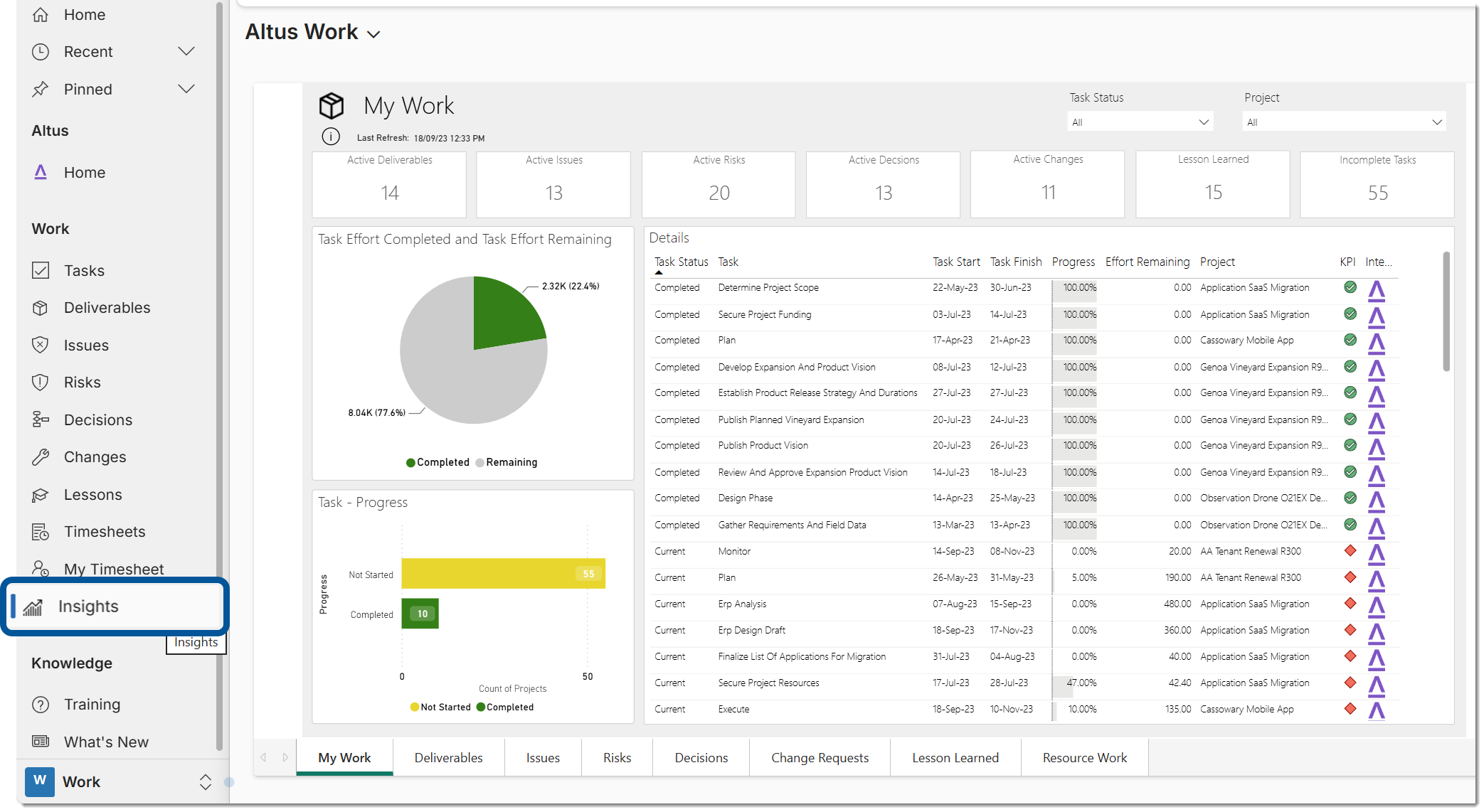
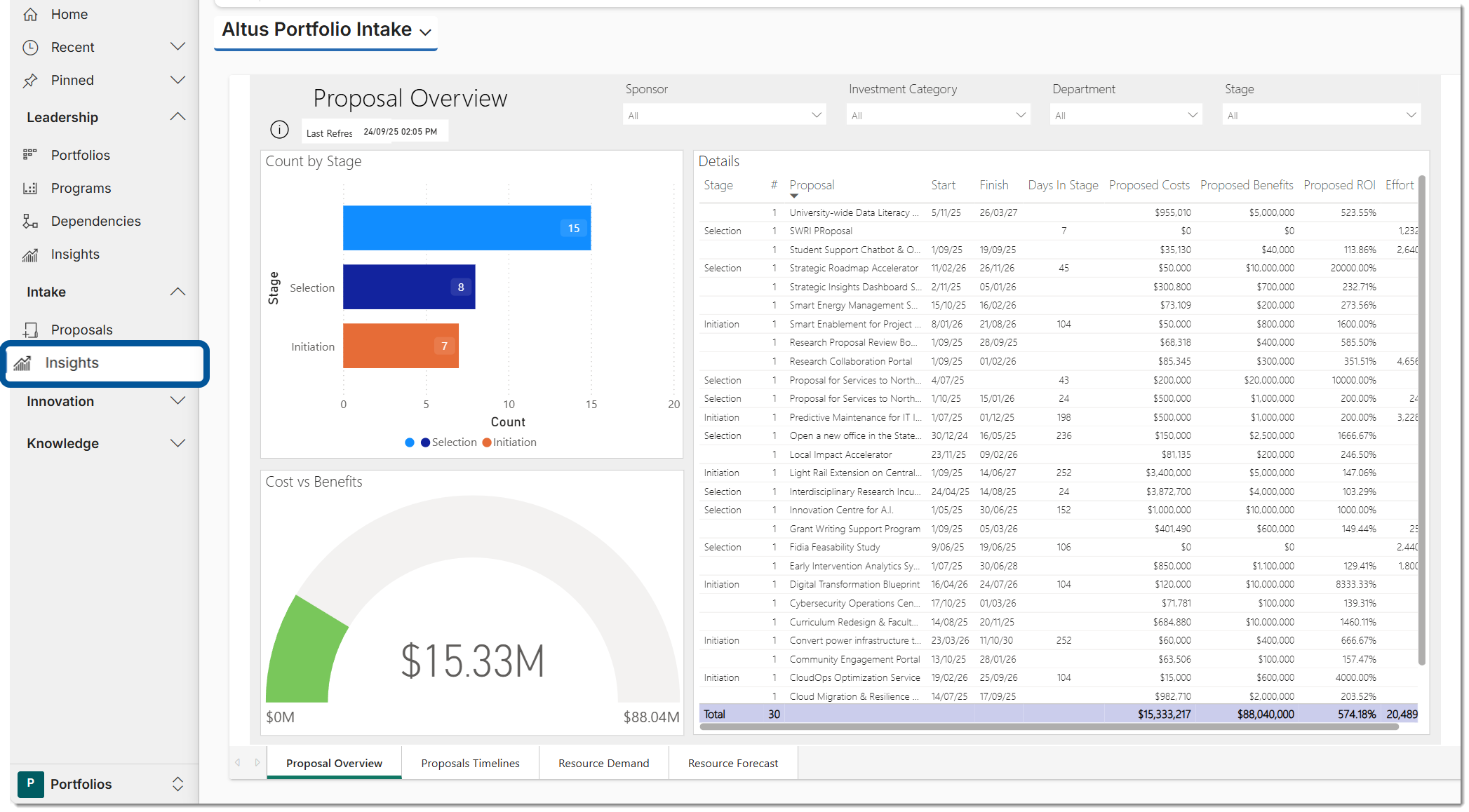
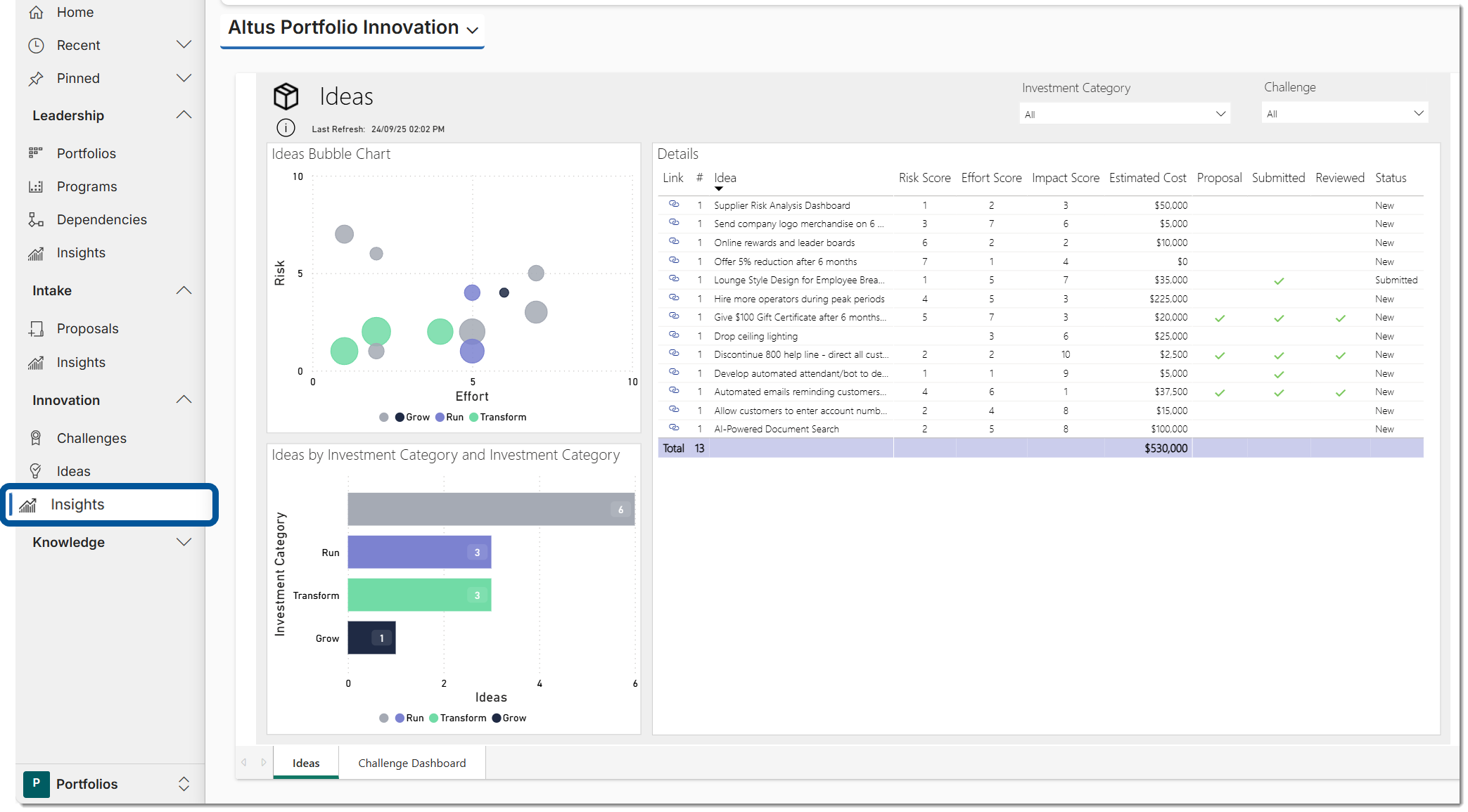
Altus provides a range of embedded Power BI reports, referred to as Insights, to help you monitor work, performance, and exceptions across:
- Strategy
- Resources
- Portfolio and Programs
- Projects
- Work
- Innovation
- Intake
These reports provide interactive, real-time views of your data and support deeper analysis through filtering, drill-through, and navigation features.
Navigating Insights Reports
Insights reports provide multiple ways to explore and navigate data:
- Use tabs at the bottom to switch between report pages
- Select summary cards to navigate to related report pages (where available)
- Use right-click → Drill through to access detailed views
- Some reports offer header navigation options (e.g. Overview, Details, Tracking, Financials)
Detailed pages provide context-specific data based on your selection, allowing you to analyse specific records more deeply.
Using Filters (Slicers)
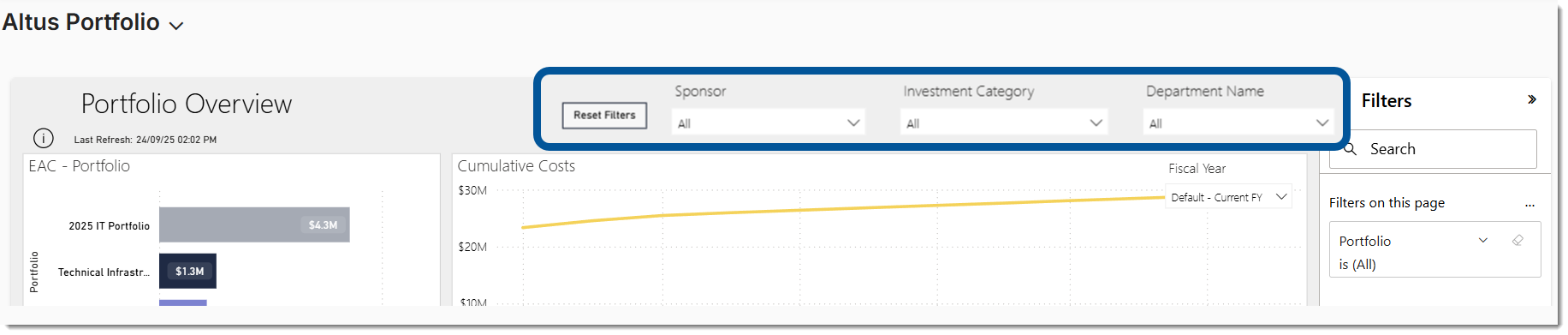
Each report includes filters (known as Slicers) to refine the data displayed:
- Select one or more values from slicers
- Combine multiple slicers to refine results
- Reset filters using the eraser icon
Tip:
Hold the Ctrl key to select multiple values within a slicer.
Interacting with Report Data
Insights reports support interactive analysis features:
- Cross-filtering: selecting values in one visual updates all others
- Drill up / down / expand / collapse using right-click options
- Tooltips: hover over values to view additional details
- Direct navigation:
- Click record names or link icons to open records in Altus
- Each record opens in a new tab for easy return to the report
Working with Insights in Altus vs Power BI
Insights reports are embedded within Altus, which means some Power BI features are limited.
Within Altus (Embedded Experience)
- ✅ You can:
- Apply filters (slicers)
- Drill through and explore data
- Navigate between report pages
- ❌ You cannot:
- Save filter states or personal views
- Use bookmarks
- Export or print reports
- Customise or persist report layouts
Open in Power BI (Full Experience)
To access full Power BI functionality:
- Open the Insights report in Altus
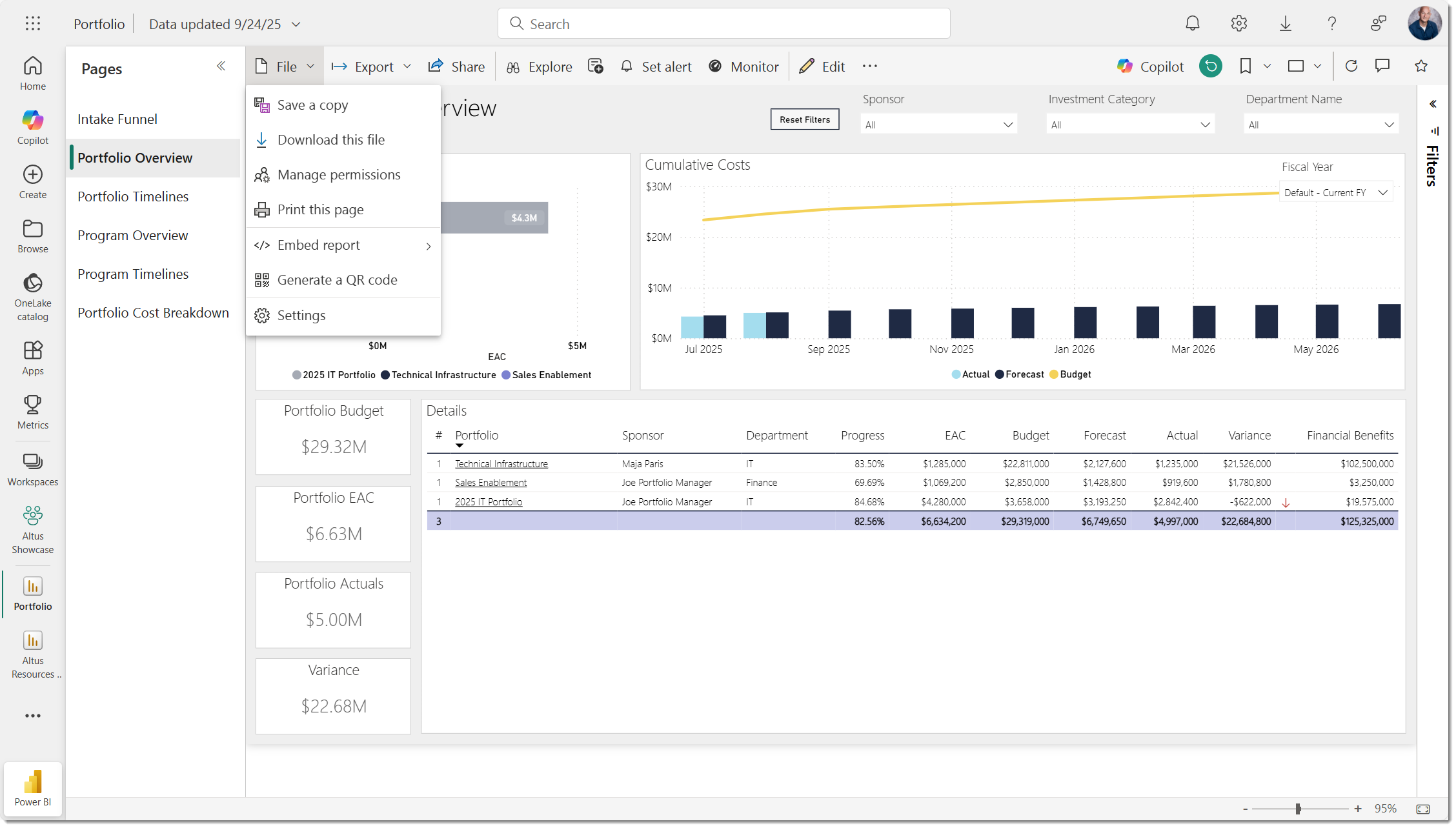
- Select Open in Power BI from the command bar
- The report will open in the Power BI workspace
From there, you can:
- Save personalised views using Bookmarks
- Print reports
- Export data or reports
- Perform deeper analysis
Tip:
In Power BI, use bookmarks to save filter and slicer states for reuse.
Learn More About Power BI
For detailed guidance on Power BI features, refer to Microsoft resources:
- https://learn.microsoft.com/power-bi/create-reports/desktop-bookmarks
- https://learn.microsoft.com/power-bi/visuals/power-bi-visualization-export-data
- https://learn.microsoft.com/power-bi/collaborate-share/service-print-a-report
Tip:
These features are only available when accessing reports directly in Power BI, not within the embedded Altus experience.
Key Considerations
- Insights reports are designed for interactive analysis within Altus
- Use Power BI directly for advanced features and reporting outputs
- Filter selections in Altus are temporary and reset on refresh or navigation
- Direct links from reports allow efficient navigation back to underlying data