Navigating the Built-in Help
Altus includes a variety of in-app learning and support tools to help you succeed at the moment you need it.
Whether you're:
- Learning something for the first time
- Looking for more advanced guidance
- Performing a task
- Troubleshooting a problem
- Adapting to a product change
Important:
Learning experiences, onboarding content, AI capabilities, and guidance features continue to evolve. Additional content, onboarding flows, tours, and learning experiences will be introduced over time.This article is based on the modern Altus user interface and AI-powered in-app help experience.
If your Help Centre widget, onboarding experience, or AI assistant looks different to the examples shown here, your organisation may still be using a previous version (see below image) or has not yet implemented the latest product release updates.
👉 Contact your Altus administrator or implementation partner if you are unsure which help experience is available in your environment.
Supporting the 5 Moments of Need
Altus learning experiences are designed to help across the five common learning scenarios:
Moment of Need | How Altus Helps |
|---|---|
Learn New | Interactive tours, onboarding flows, AI-assisted guides |
Learn More | Knowledge articles, blogs, Help Centre content |
Apply | Contextual tooltips, guided walkthroughs, AI assistance |
Solve | AI chat, Help Centre search, contextual support |
Change | Newsfeeds, release announcements, blogs, product updates |
1. Getting Started with the AI-First Help Centre
The AI-powered Help Centre is designed to be your first stop for help, learning, and guidance in Altus.
Unlike traditional help systems that require you to search through menus and documentation manually, the AI assistant allows you to ask questions using natural language and discover relevant content, resources, and guidance more quickly.
Launch the Help Centre
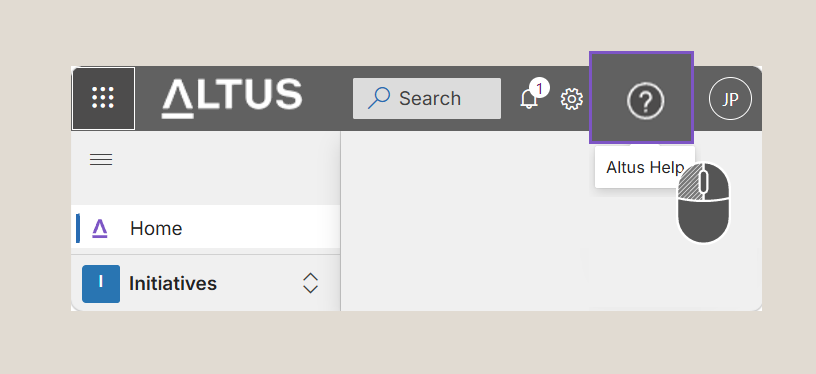
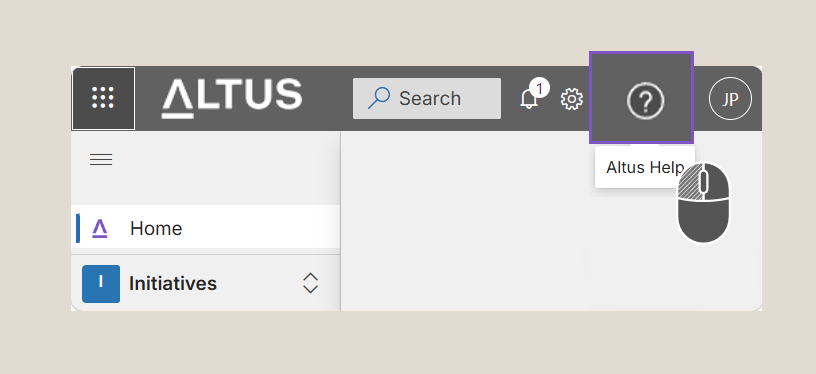
- Locate and click the (?) Altus Help icon from the banner across the top right hand corner of the Altus application.
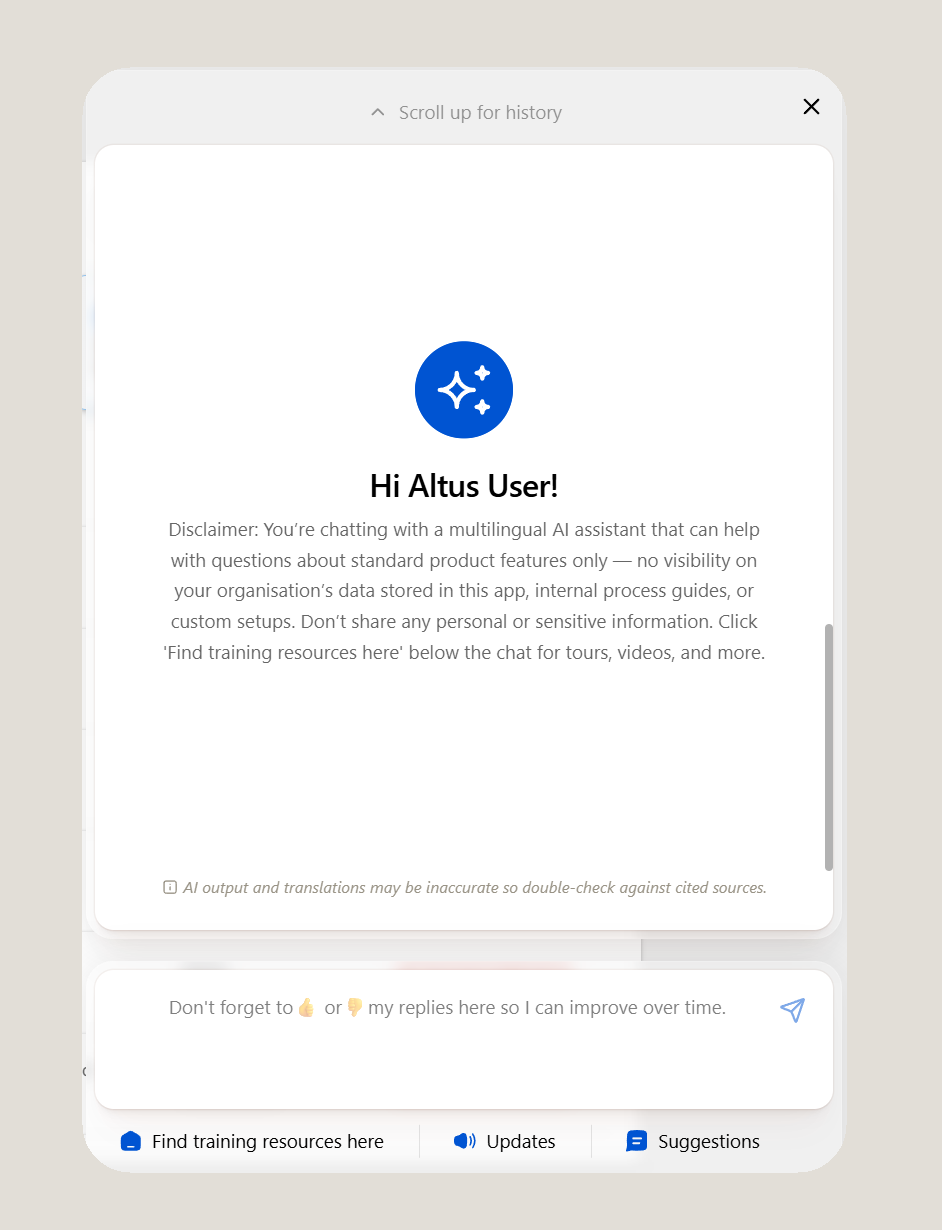
- The Help Centre widget will open.
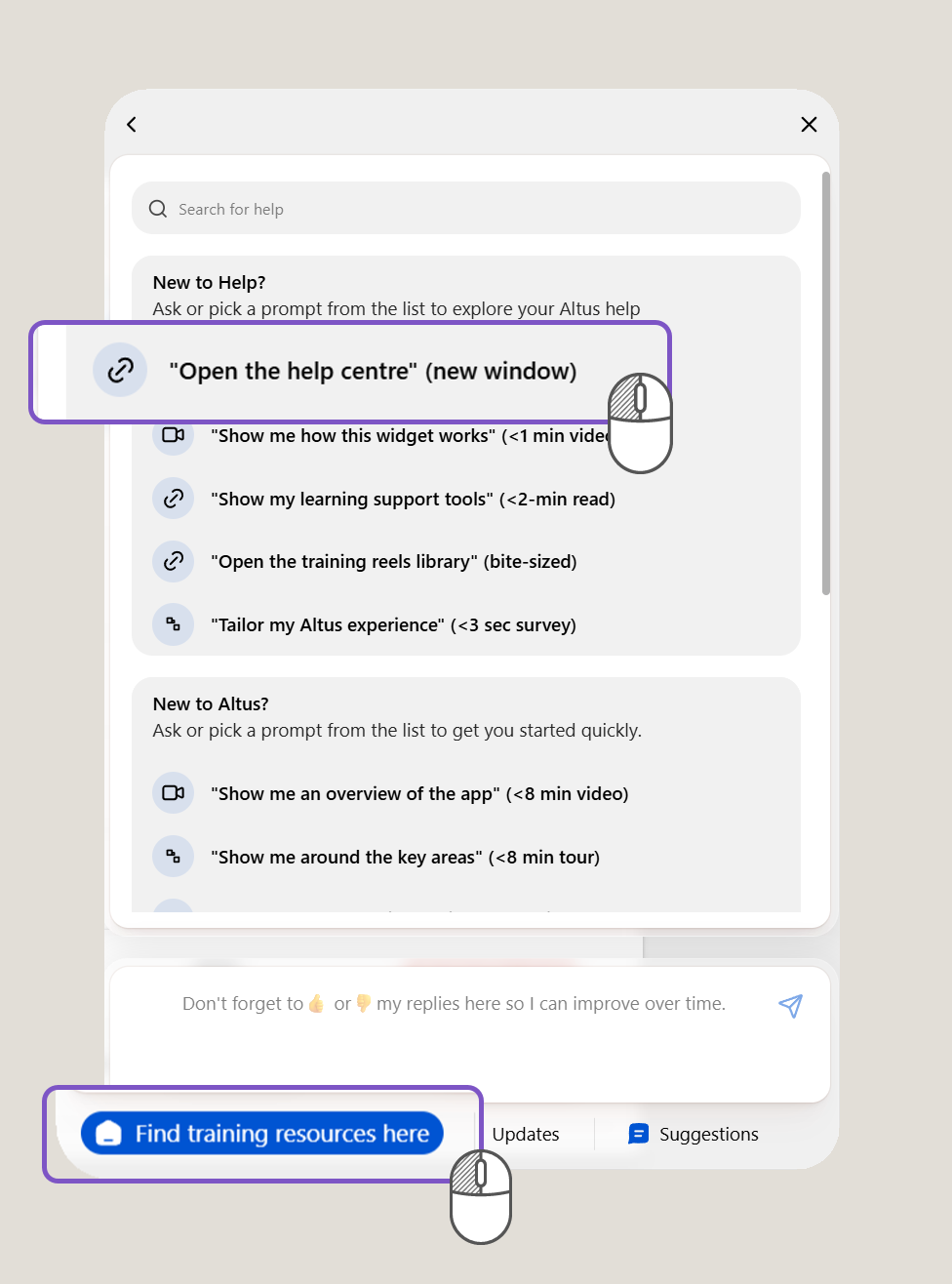
- Start by asking a question or exploring one of the available options such as 'Find training resources here', 'Updates' and 'Suggestions'.
Ask the AI Assistant
The AI assistant is the primary entry point into the Help Centre.
You can ask questions such as:
- How do I create a project?
- Where do I manage risks?
- Show me where to submit a timesheet.
- Help me understand resource demand.
- What is a project lifecycle?
The AI will attempt to provide:
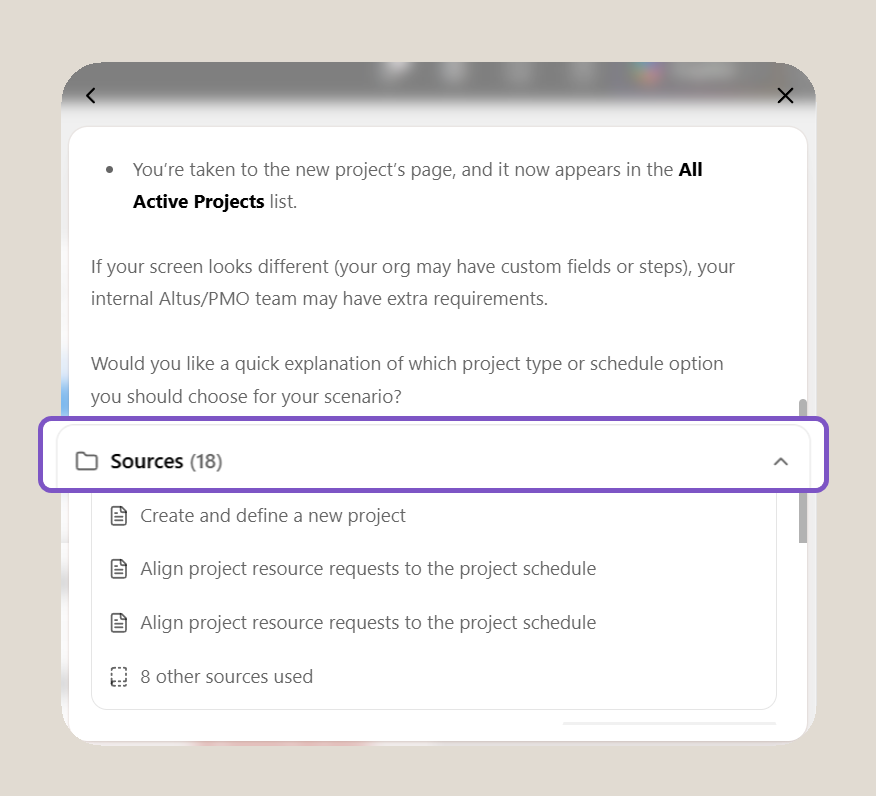
- Quick answers with links to cited knowledge articles
- Product guidance
- Navigation assistance
Tip:
Ask questions naturally using everyday language. The AI is designed to understand conversational requests.
Important:
The AI assistant is based on:
- Standard Altus features (Overview | Altus Docs)
- Connected public knowledge sources (Altus PPM | Altus Docs + Altus | Project & Portfolio Management for Microsoft 365 website)
- Configured learning resources (Altus Help Centre)
The AI does not have visibility of:
- Organisation-specific data entered into Altus
- Internal governance documents
- Internal procedures
- Custom configurations
- Organisation-specific business rules
Always refer to your organisation’s internal guidance where required. Please refer to the Altus Altus Trust Center for more information on how Altus handles your data.
Multilingual AI Support
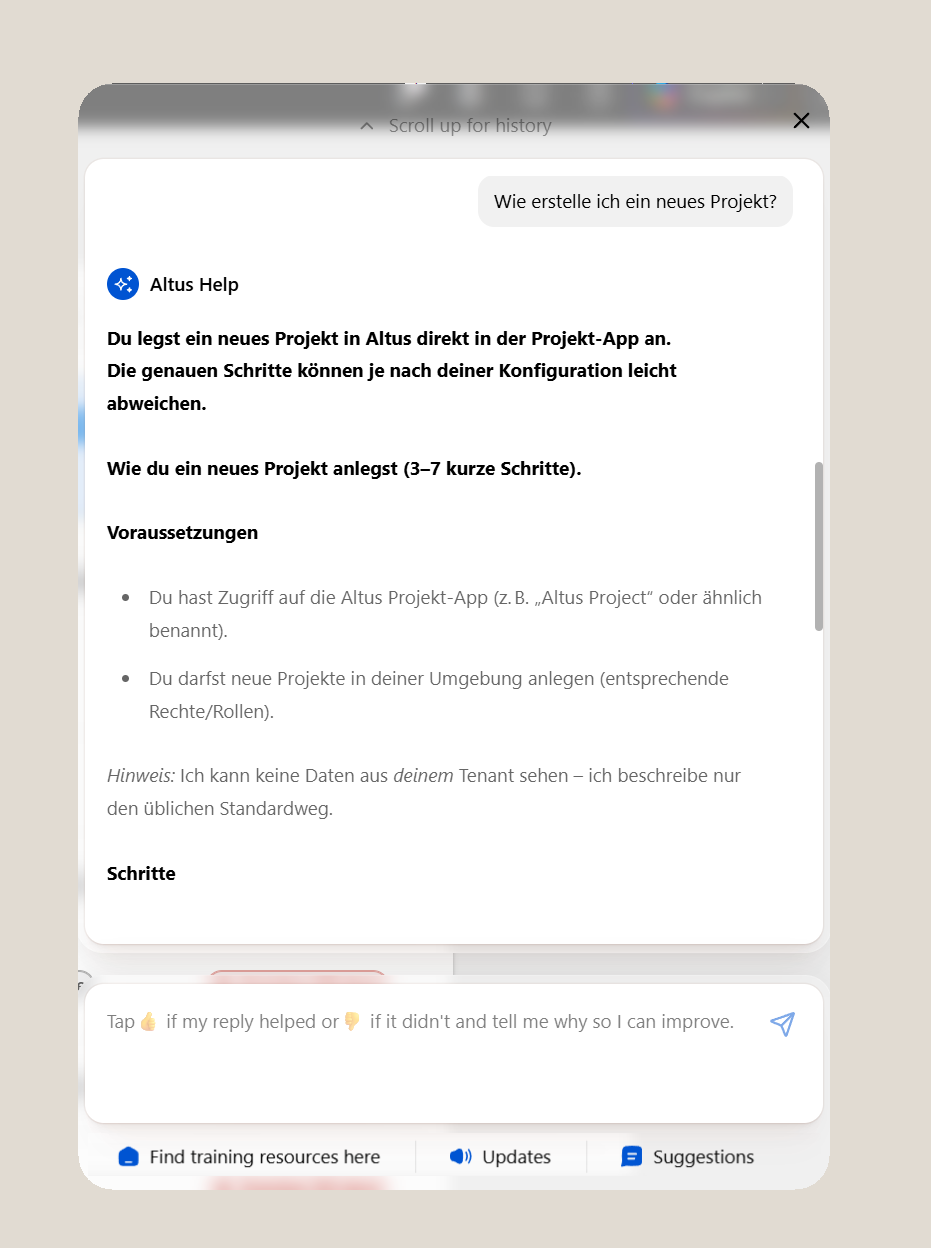
The AI assistant supports multiple languages and can assist users in their preferred language where supported.
Important:
Multilingual support currently applies to interactions with the AI chat experience only.
Other Help Centre components continue to use the same underlying English content, including:
- Interactive tours
- Guided onboarding experiences
- Announcements and pop-ups
- Newsfeed content
- Contextual hints and spotlights
- Knowledge articles
- Learning resources
If your browser or device is configured to an unsupported language, some content cards, articles, or learning experiences may appear blank or unavailable.
👉 This typically means the English content has not yet been made available in your browser's default language experience.
If this occurs, contact your Altus support channel or administrator immediately so the issue can be investigated.
Tip:
If content appears missing, try switching your browser language preference to English and reload the Help Centre before reporting the issue.
AI Accuracy Disclaimer
Important:
AI-generated responses and translations may occasionally be inaccurate, incomplete, or out of date.Always validate information against:
- Knowledge articles
- Referenced sources
- Internal governance documentation
- Organisational processes
When in doubt, follow your organisation’s approved procedures and governance requirements.
Help Improve the Experience
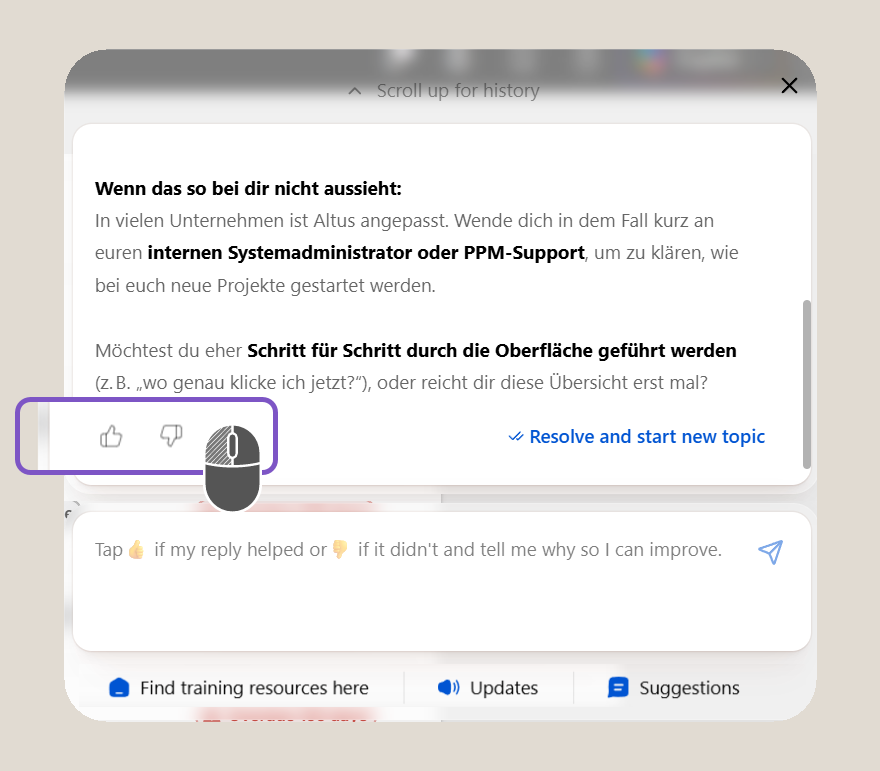
The AI assistant continuously improves through user feedback.
If a response was helpful:
- Select 👍
If a response was not helpful:
- Select 👎
- Explain what was incorrect or missing
Your feedback helps improve:
- AI responses
- Knowledge content
- Learning experiences
- Onboarding journeys
- Product guidance
Best Practice:
Use feedback whenever you encounter inaccurate, outdated, or incomplete information to help improve the experience for everyone.
Tip: To start a new topic, click Resolve and start new topic.
Altus Help Centre Portal
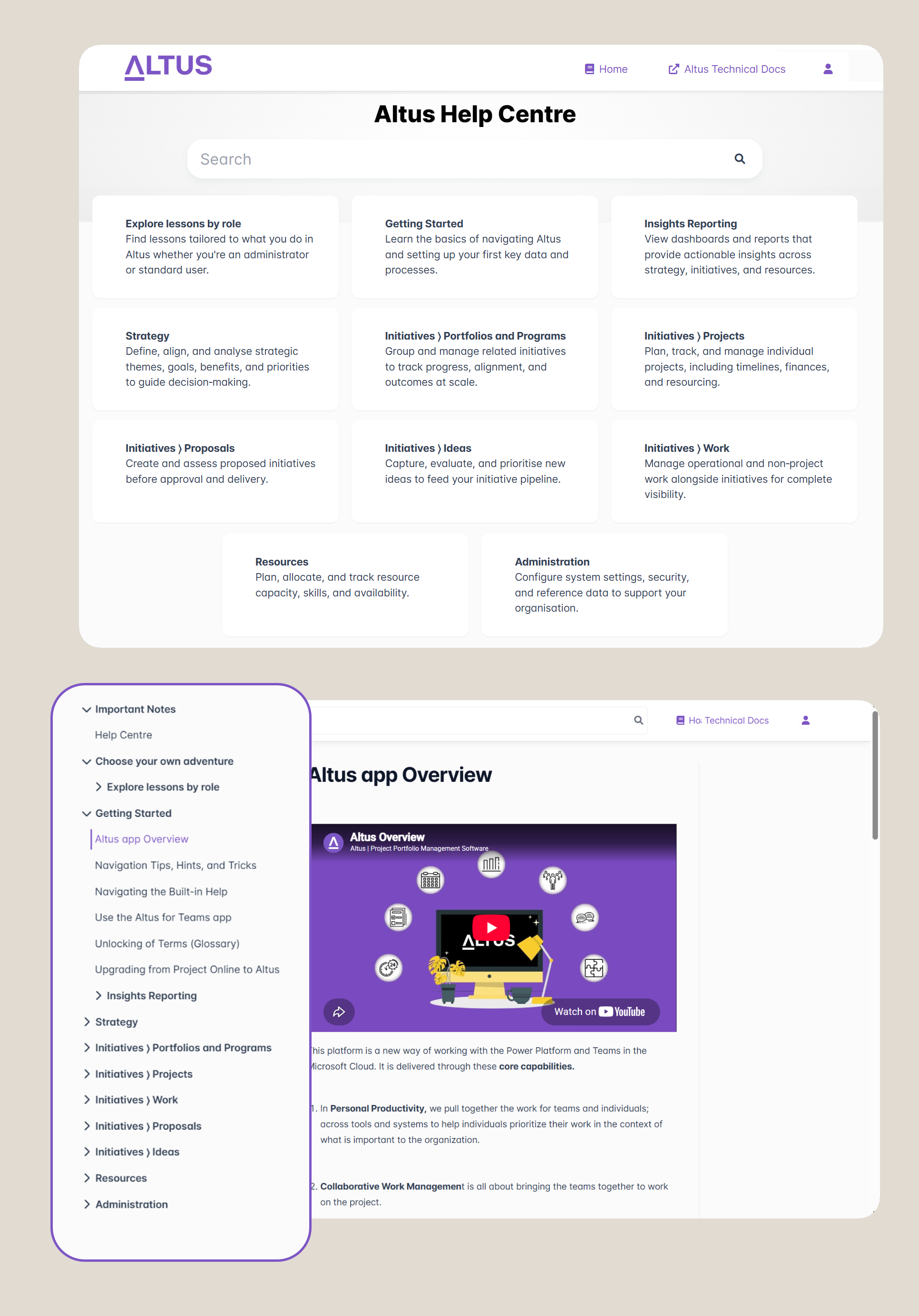
The Altus Help Centre is the central knowledge base maintained by Altus that provides documentation, learning resources, videos, and guidance based on standard Altus features and capabilities.
You can access the Help Centre by:
- Selecting "Open the help centre (new window)" from the Find Training Resources > New to Help? section.
- Visiting the Help Centre directly at Altus Help Centre (https://help.altus.pro)
The Help Centre contains:
- Knowledge articles
- Getting started guides
- Role-based learning content
- Feature documentation
- Product videos
- Release information
- Best practices
Important:
The Altus Help Centre focuses on standard Altus functionality and default product capabilities. It does not typically include:
- Organisation-specific processes
- Internal governance requirements
- Custom configurations
- Partner-developed functionality
- Organisation-specific business rules
Always refer to your organisation's internal guidance where local processes or customisations apply.
Current Limitation
At present, the AI assistant chat is connected primarily to Altus knowledge sources and learning content. It can:
- Answer questions
- Explain concepts
- Provide guidance and wayfinding
- Recommend relevant knowledge articles and sources
- Cite the content used to formulate its response
The main AI chat does not currently:
- Launch interactive tours
- Start guided walkthroughs
- Trigger onboarding experiences
- Open contextual hints or spotlights
- Perform actions within Altus
The main AI assistant chat currently provides guidance and answers based on available knowledge sources but does not directly launch tours, onboarding experiences, or knowledge articles on your behalf. When available, it will cite the articles or sources used to formulate its response.
👉 If you are specifically looking for:
- Interactive tours
- Guided onboarding journeys
- Videos
- Learning paths
- Help articles
Navigate to Find training resources here and use the available search box using keywords. This functionality is accessed separately from the AI chat experience.
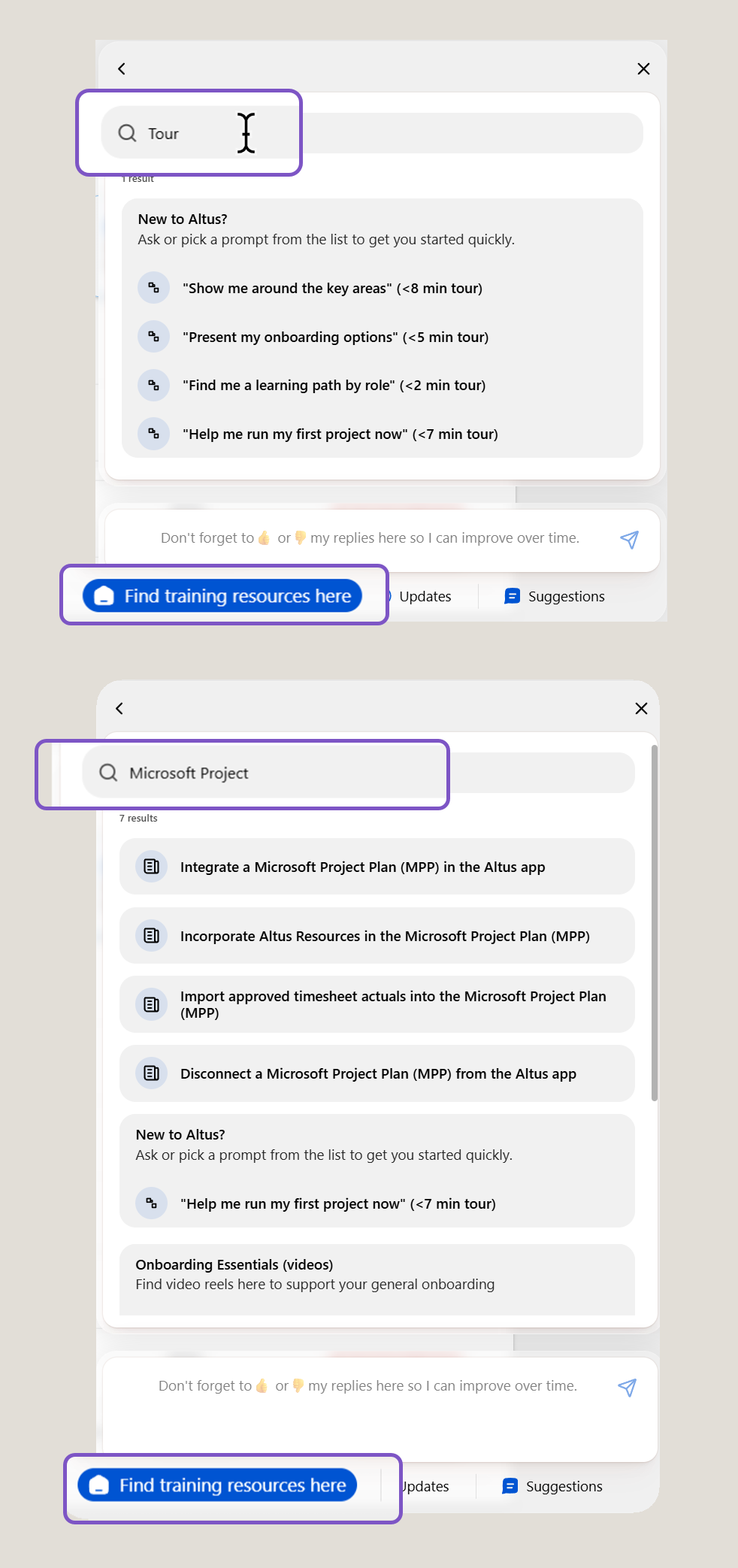
As AI capabilities continue to evolve, responses may occasionally be inaccurate, incomplete, or out of date.
👉 If you encounter incorrect guidance, please submit feedback, use the 👍 / 👎 rating options, or respond directly within the conversation so the experience can continue to improve.
Explore Find training resources here.
The Find training resources here section helps new users quickly become productive.
It includes resources such as:
- Altus overview videos
- Guided tours
- Onboarding journeys
- Role-based learning paths
- First project walkthroughs
- Help article collections
- Product roadmaps and release information
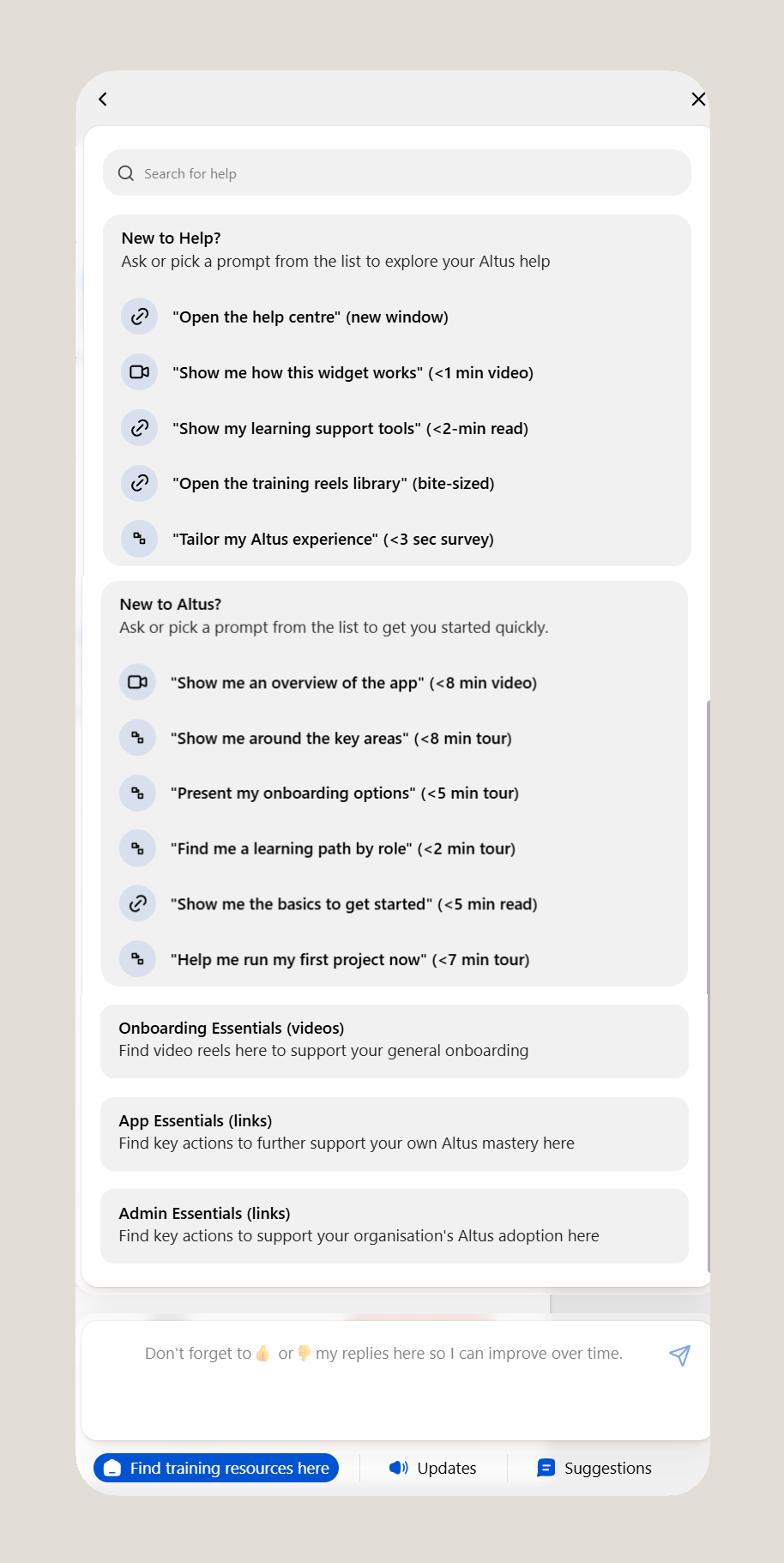
These resources combine videos, interactive tours, guided walkthroughs, and structured learning experiences to help users learn at their own pace.
Tip:
Start here if you are new to Altus or if you have recently moved into a new role.
View Updates
Select Updates to stay informed about:
- Product releases
- New functionality
- Upcoming features
- Product announcements
- Altus blogs and release wrap-ups
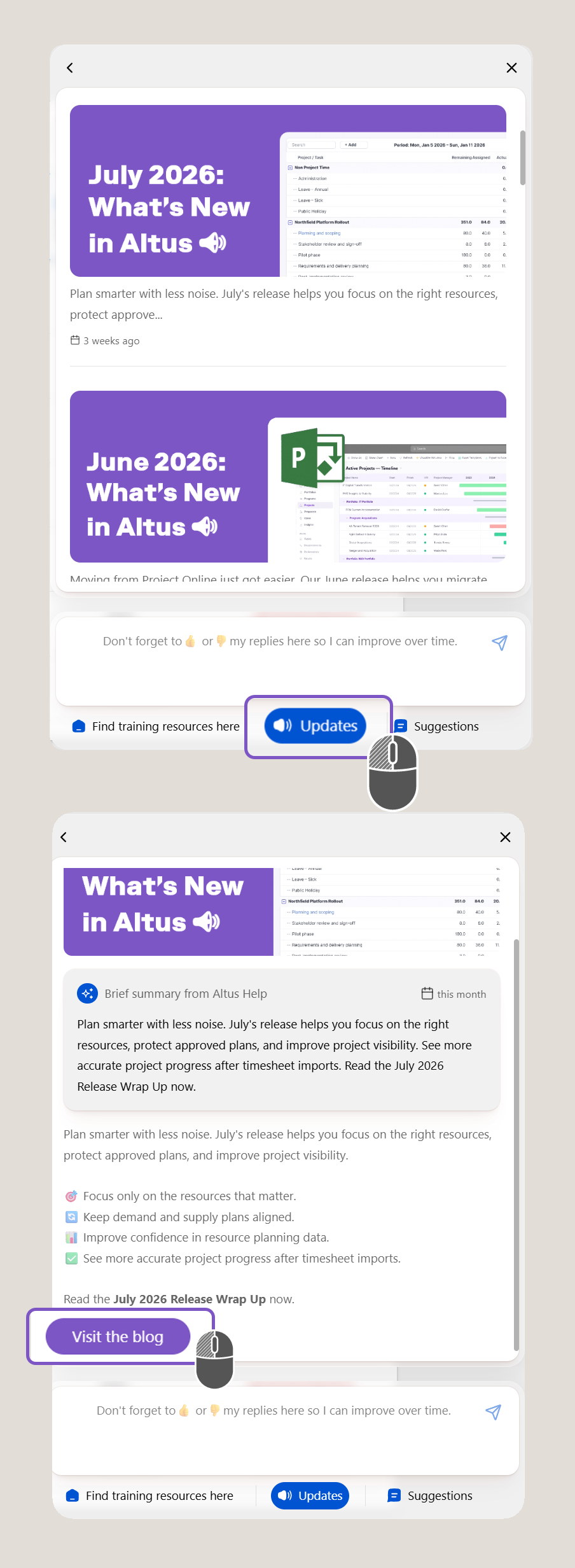
Each announcement typically includes additional information and may contain links to:
- Altus blog articles
- Release notes
- Demonstration videos
- Learning resources
Tip:
Review the Updates section regularly to stay informed about new capabilities available in your environment.
Submit Suggestions and Feedback
Select Suggestions to submit:
- Product improvement ideas
- Feature recommendations
- Help content improvements
- Learning and onboarding suggestions
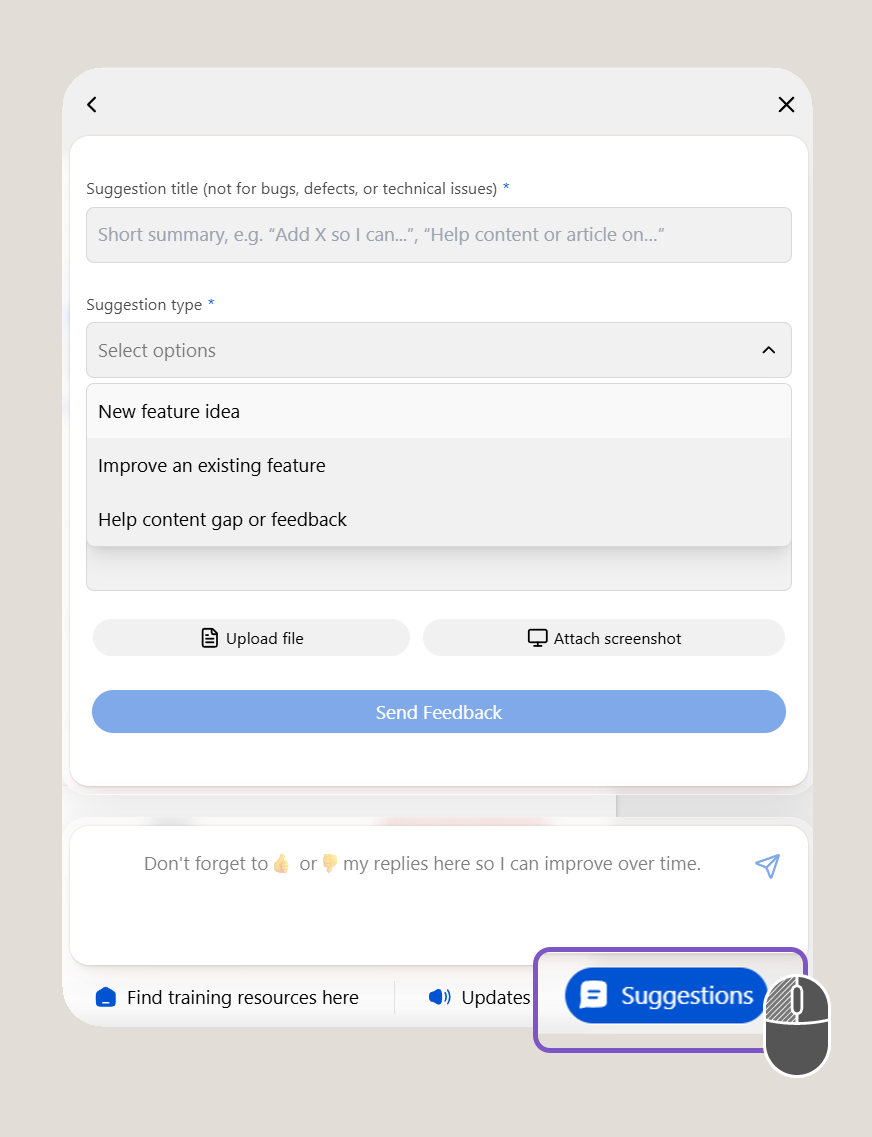
You can enhance feedback by including:
- Screenshots
- Images
- Examples
- Supporting documents
Important:
The Suggestions feature is intended for product and help centre content feedback only. Your responses are processed securely—don't include sensitive, confidential, or personal information. For bugs or support issues, use your usual Altus support channel.For:
- Bugs
- Defects
- Technical issues
- Service requests
Contact your organisation's designated support team instead.
2. Stay Informed with Announcements and Product Updates
Altus uses several in-app communication methods to help you discover new features, learning resources, release information, and important updates.
These notifications help users adapt to change without needing to leave the application.
Banners
Banners may appear at the top of a page to draw attention to:
- New features
- Product updates
- Learning resources
- Important announcements
To interact with a banner:
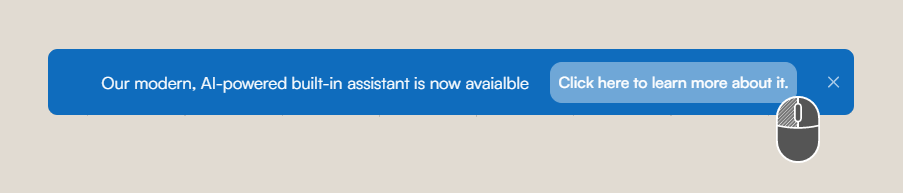
- Review the message
- Select the link (if provided) to learn more
- Once interacted with, the banner will typically dismiss automatically
Tip:
Banners are designed to provide quick access to important information without disrupting your workflow.
Pop-Up Announcements
Pop-up announcements may appear when you sign in to Altus, particularly after:
- Product releases
- Major feature updates
- Important organisational communications
These announcements are often presented as a carousel, allowing you to browse through multiple messages.
To interact with a pop-up:
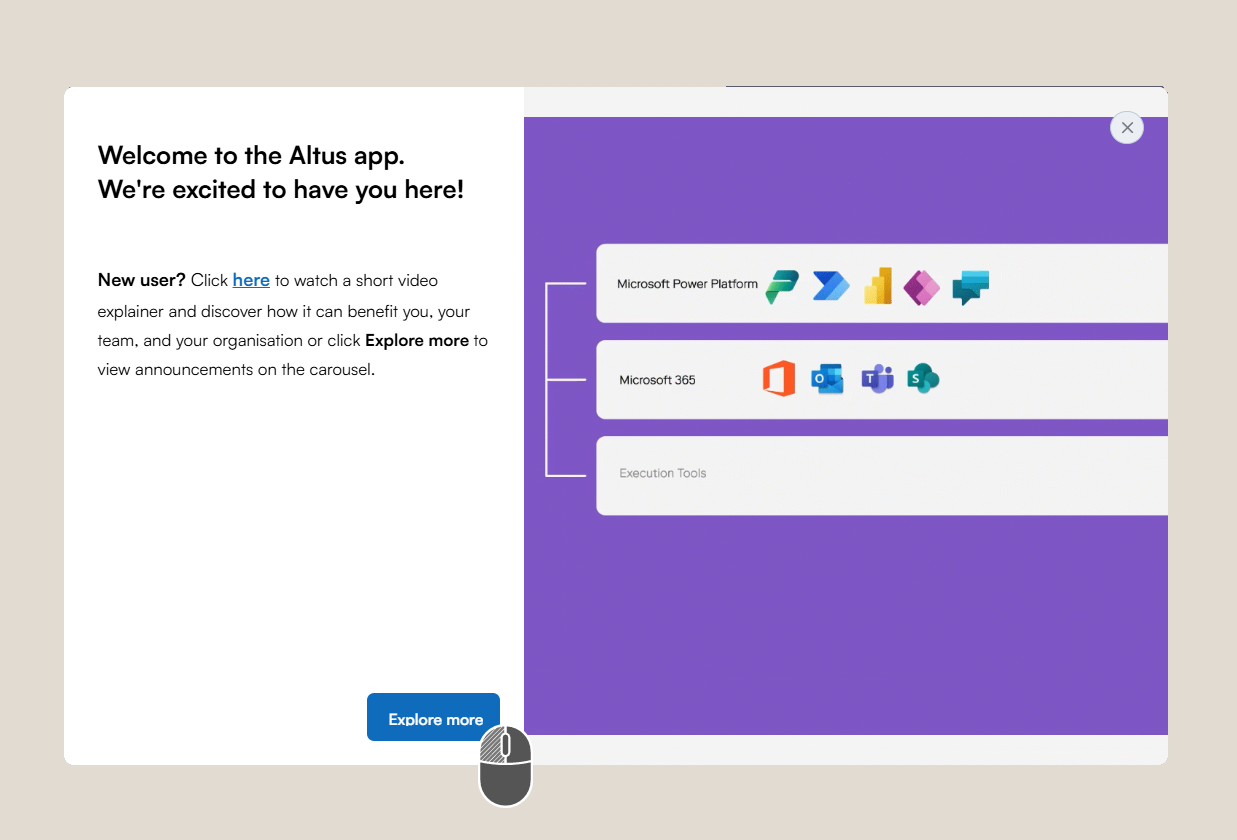
- Review each slide in the carousel
- Use the navigation controls to move between announcements
- Select any action buttons provided to:
- Open a resource
- Launch a guide
- Learn more about a feature
Tip:
New pop-up announcements typically appear after login and are intended to highlight important information that should not be missed.
Check the Newsfeed (Updates)
Newsfeed provides a central location for product announcements and release communications.
To access the Newsfeed:
- Launch the Help Centre widget by selecting the (?) Help icon in the banner across the top right hand corner of the Altus application.
- Select Updates
- Browse the available announcements
- Open individual posts to read more
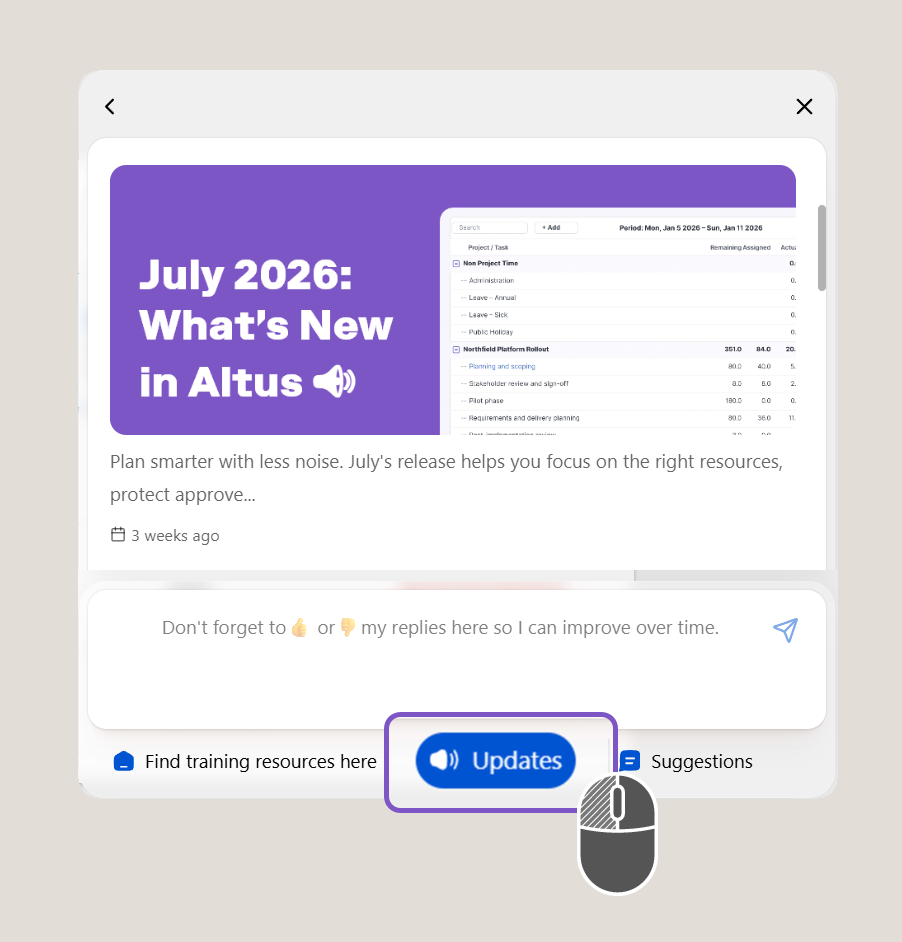
Announcements commonly include:
- Product release summaries
- Altus blog articles
- Feature highlights
- Events and webinars
- Learning resources
Tip:
Many Newsfeed announcements include links to official Altus blog posts, release wrap-ups, videos, or supporting resources for additional detail.
Best Practice:
Review the Newsfeed regularly to stay informed about new capabilities and improvements available in your Altus environment.
3. Learn in Context with Tooltips
Altus includes contextual guidance features that provide support directly within the application as you work.
These hints are designed to:
- Highlight new functionality
- Draw attention to important information
- Provide just-in-time guidance
- Help you discover features without leaving your workflow
Tip:
Tooltips are designed to provide support at the exact point of need, reducing the need to search for information elsewhere.
Information Icons (ⓘ)
Information icons may appear next to:
- Fields
- Buttons
- Settings
- Headings
To interact with an information icon:
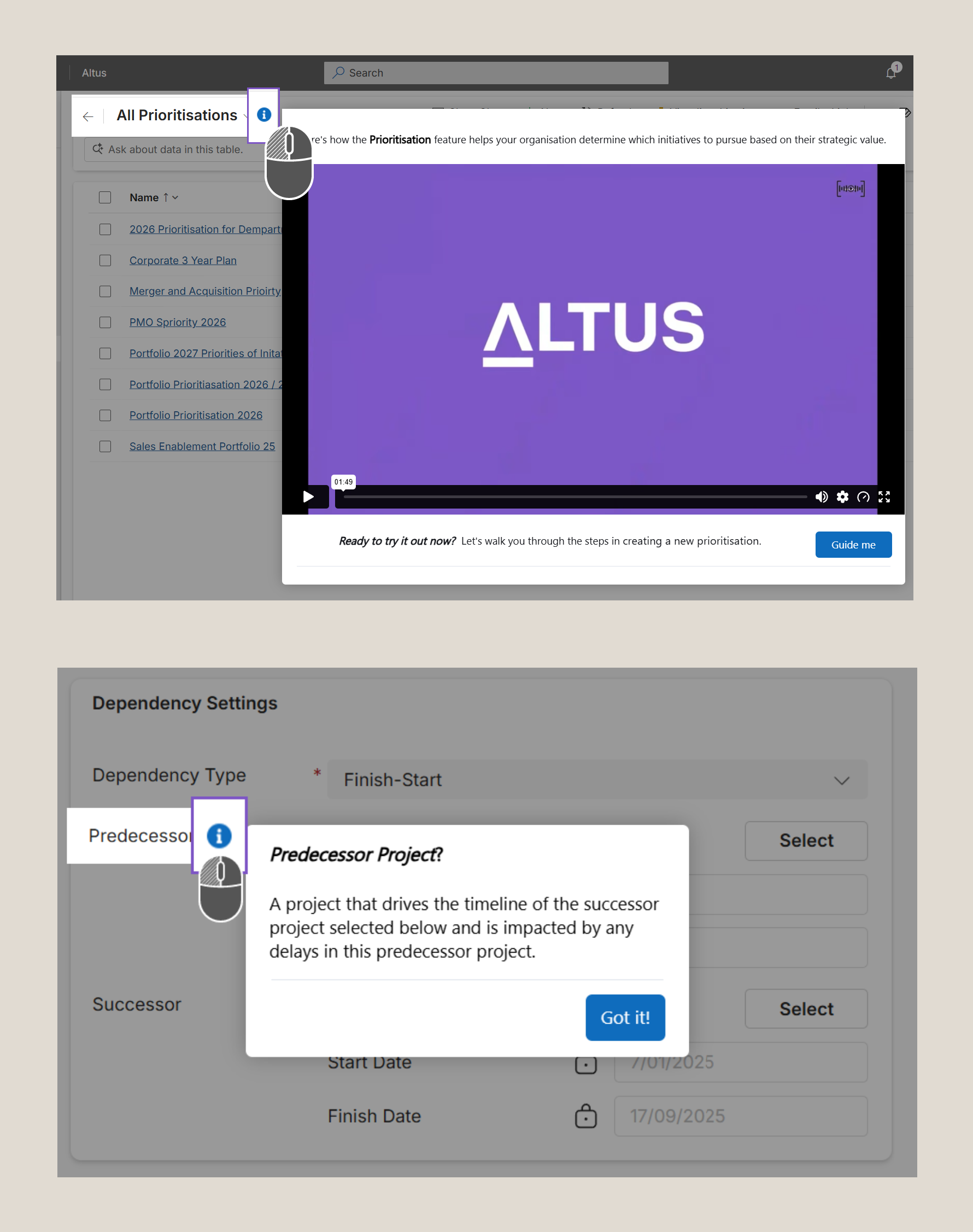
- Click the ⓘ icon
- Read the guidance provided
- Close the tooltip when finished
Tip:
Information icons remain available and can be accessed whenever you need a reminder or explanation.
Beacon Hints
Beacon hints appear as small visual indicators designed to draw attention to a specific feature or area of the page.
To interact with a beacon:
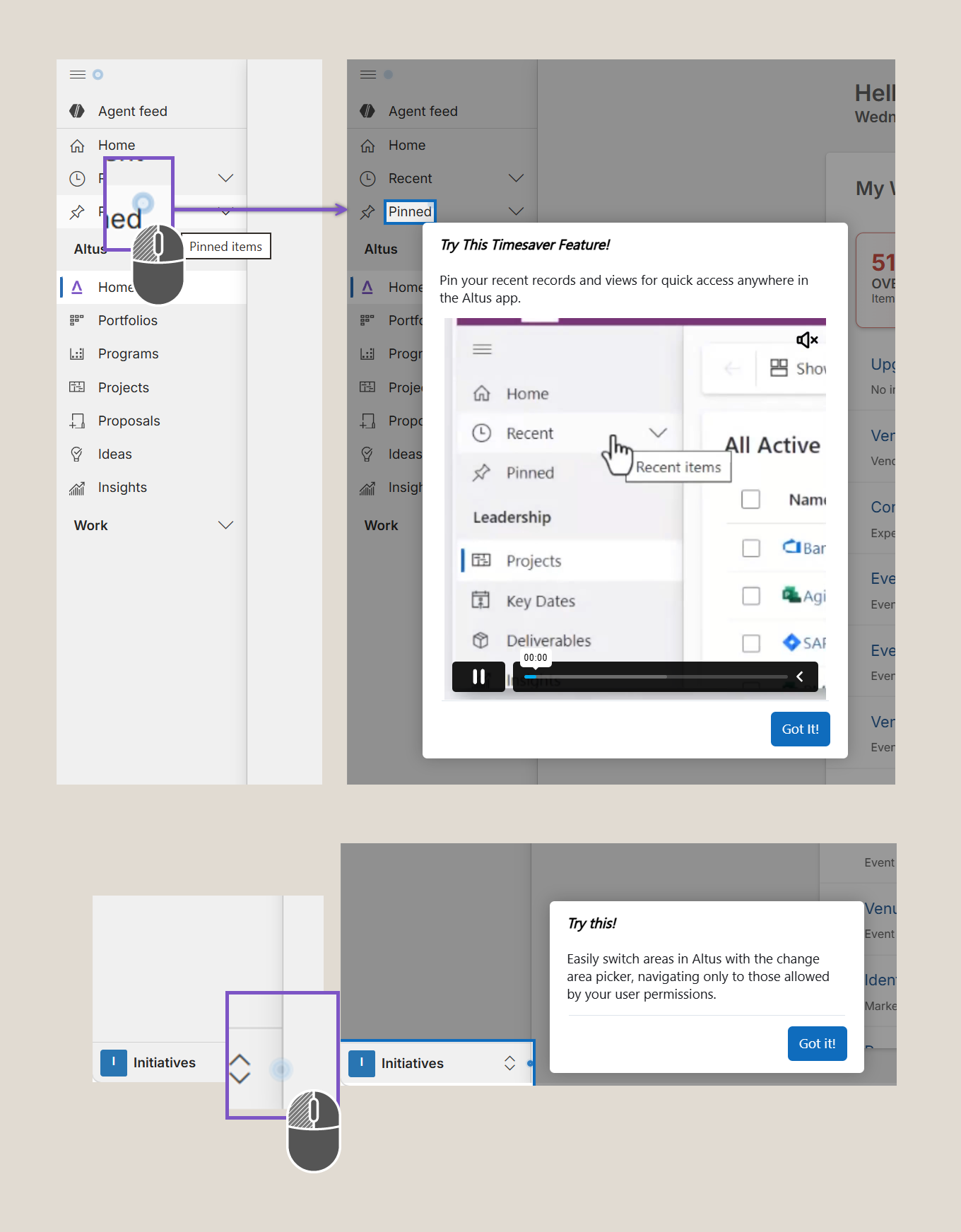
- Select the beacon indicator
- Review the information provided
- The beacon will normally dismiss once interacted with
Tip:
Interacting with beacon hints helps clear the page while ensuring you don't miss feature announcements or guidance.
On-Screen Spotlights
Spotlights temporarily highlight specific areas of the screen to introduce new features, guide users, or provide contextual assistance.
When a spotlight is displayed:
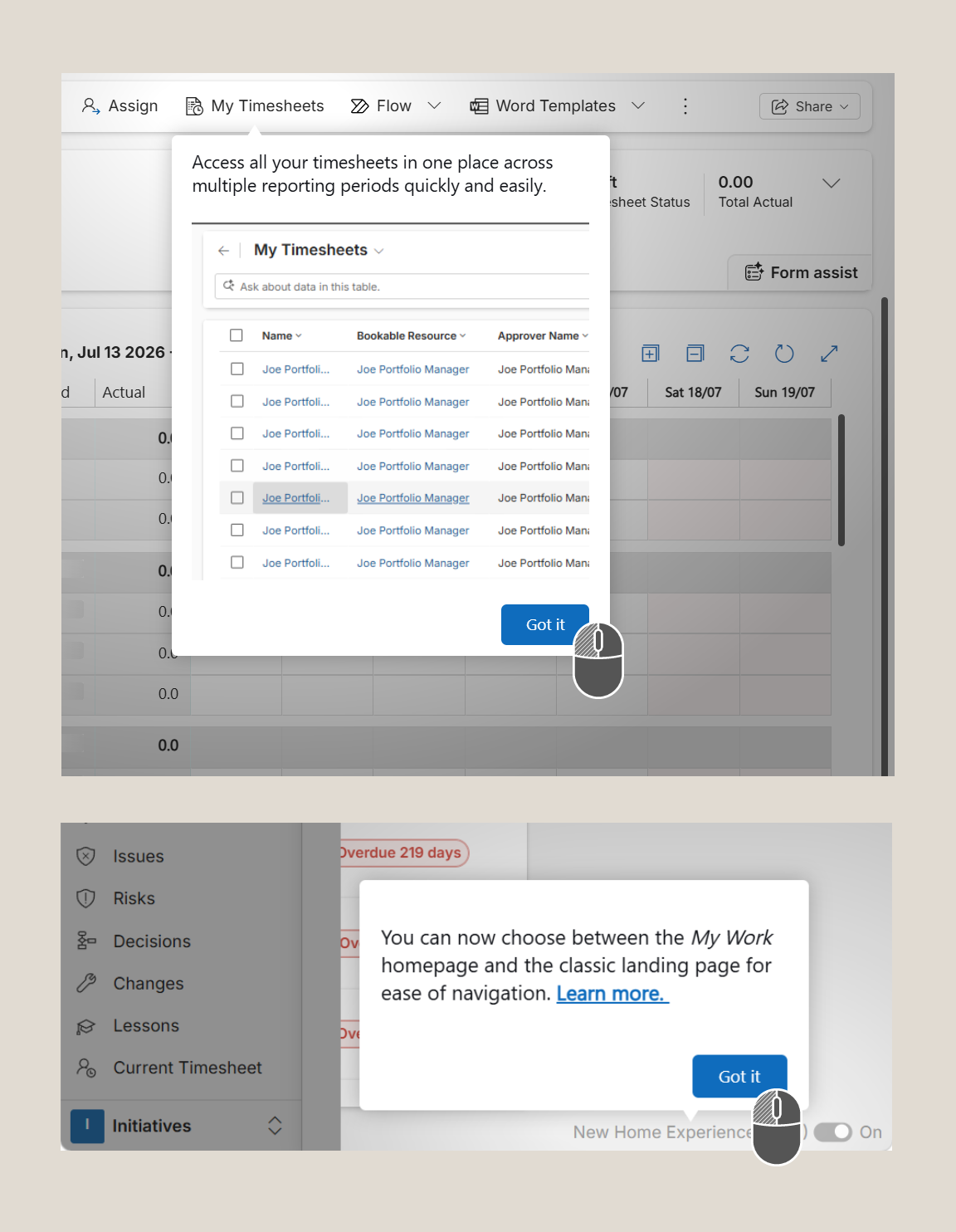
- The rest of the page may be dimmed
- Interaction with underlying page elements is typically blocked
- The spotlight must be acknowledged before normal interaction resumes
To continue:
- Review the information presented
- Click Got It (or the equivalent action button)
- Continue working as normal
Tip:
Spotlights are intended to ensure important information is seen before proceeding and will typically disappear once acknowledged.
Best Practice:
Take a few seconds to review contextual hints when they appear. They often highlight new functionality, shortcuts, or improvements that can help you work more efficiently in Altus.
4. Guided Learning and Personalised Assistance
Altus provides a growing range of guided learning experiences designed to help users get productive quickly and confidently.
These experiences support users who are:
- Learning Altus for the first time
- Exploring new features
- Completing common tasks
- Navigating unfamiliar areas
- Looking for guidance without leaving their workflow
Learning experiences may include:
- Interactive tours
- Guided walkthroughs
- On-screen assistance
- Embedded videos
- Role-based onboarding experiences
- AI-assisted guidance and wayfinding
Together, these tools help users learn new concepts, apply knowledge in context, and discover features as they work.
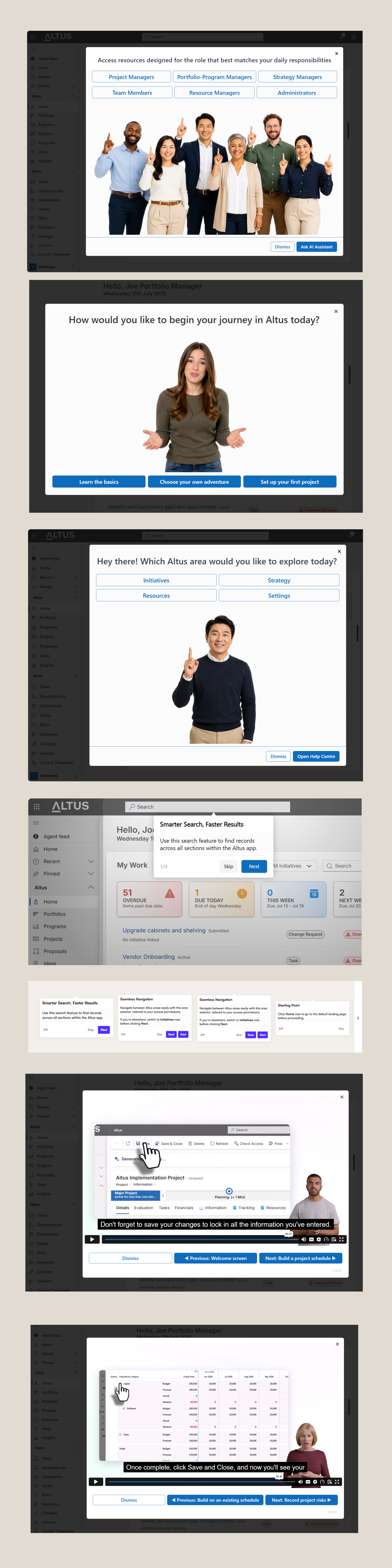
Interactive Tours and Guided Walkthroughs
Interactive tours introduce key areas of Altus and help users:
- Discover important functionality
- Understand navigation
- Learn business processes
- Complete common tasks
Depending on the content, tours may include:
- Branching scenarios (choose your own adventure)
- Video demonstrations
- On-screen guidance
- Context-sensitive tips
Tip:
Guided learning experiences are continuously being expanded and improved. New tours, onboarding journeys, and contextual learning content will be added over time.
Personalised AI-Assisted Wayfinding (still an early access feature)
The AI assistant will also attempt to provide on-demand guidance when it receives explicit wayfinding questions using natural language such as:
- Guide me where to submit timesheets (vs Show me how to submit timesheets)
- Show me onscreen where to fulfil resource demand (vs Show me steps on fulfilling resource demand)
- Where do I update project financials? (vs I need an onscreen guide on updating financials)
The AI will only point you to relevant areas as a starting point.
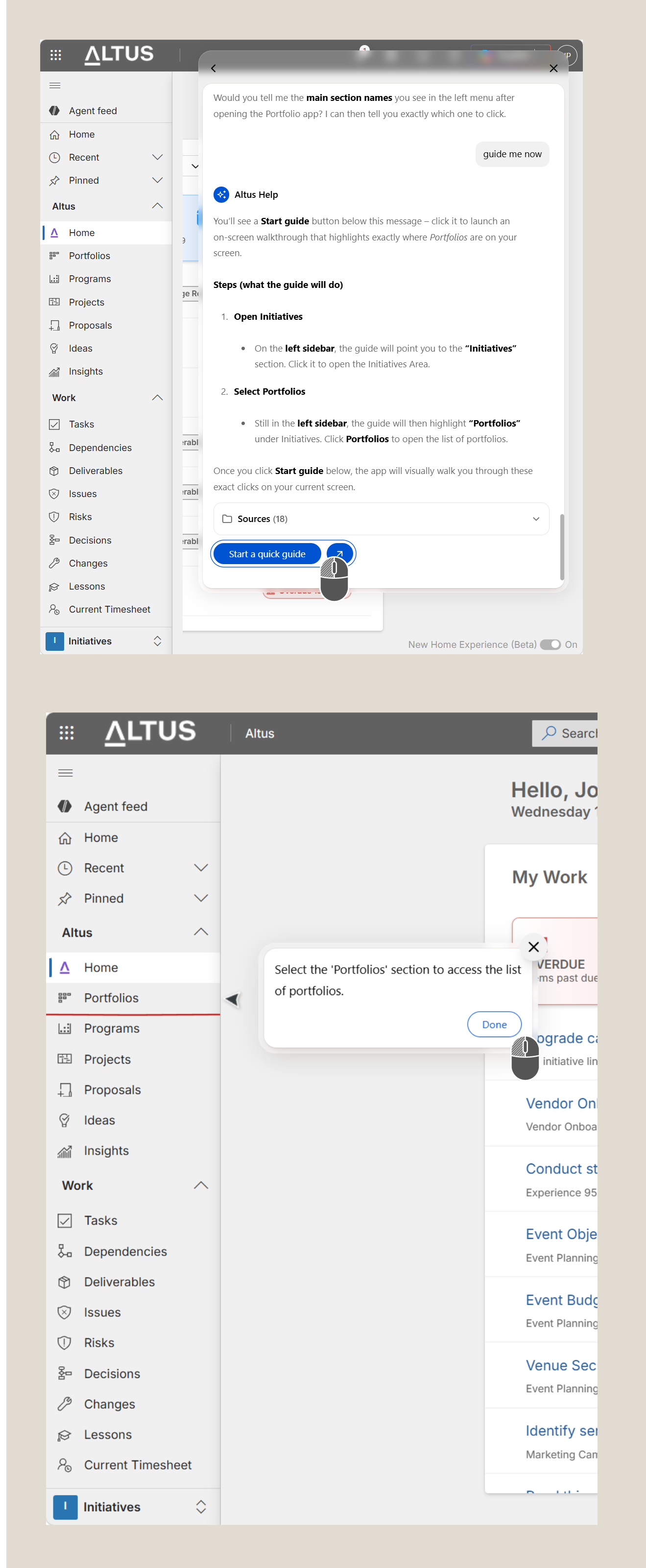
Current Limitations:
AI-assisted wayfinding is currently an early-access feature and only limited to helping users navigate the key areas of Altus (basic wayfinding only) and does not perform or guide the users through a set of actions or complete tasks on your behalf.
At present, the AI is connected primarily to Altus knowledge sources and learning content. It does not currently launch tours, trigger onboarding guides, activate contextual hints, or perform workflow actions automatically.As this capability continues to evolve, the AI may occasionally provide inaccurate, incomplete, or outdated guidance.
👉 If you encounter incorrect information, please submit feedback immediately to help improve future responses and learning experiences.
Always validate important decisions or process steps against:
- Knowledge articles
- Referenced sources
- Your organisation's internal procedures and governance guidance
5. Coming Soon
Altus continues to expand its learning ecosystem.
Planned and evolving experiences include:
- Enhanced onboarding flows
- Smarter guided tours
- Personalised learning recommendations
- AI-assisted wayfinding
- Role-based onboarding journeys
- Interactive onboarding checklists
Stay tuned — more learning content and guided experiences will continue to be added over time.
6. Tips
- Start with the AI-assisted Help Centre for quick answers.
- Use interactive tours when exploring new areas.
- Review Newsfeed articles and Altus blogs regularly.
- Take advantage of contextual guidance when working in the platform.
- Share feedback to help improve future learning experiences.
- Check back regularly as new learning content continues to be released